
Convert PDF to JPG online free in your browser: every page becomes a JPG in one ZIP, with Standard, High and Maximum quality. No sign-up, no watermark.
There is a particular kind of frustration that comes with a PDF you cannot use. Someone sends you a document, you need one page of it in a presentation, and suddenly you are taking screenshots, cropping them by hand, and ending up with a blurry mess. Learning how to convert PDF to JPG online free fixes that in about a minute, and it is one of those small skills that quietly saves you time again and again. This guide shows you how to turn every page of a PDF into a clean JPG image with the free PDF to JPG Converter, explains the quality settings in plain language, and covers the mistakes that leave people with soft, crooked, or missing pages. Your document never leaves your own device, and there is no sign-up and no watermark on the result.
Why a JPG is sometimes better than a PDF
PDF is a superb format for documents, and nobody is suggesting otherwise. It keeps text selectable, pages in order, and layout exactly as the author intended. But a PDF is a document, and documents are awkward guests in places built for pictures. You cannot drop a PDF page into most social media posts. Many chat apps show a PDF as a plain attachment that the other person has to download and open, while an image displays right there in the conversation. Presentation software will happily take a picture and let you crop, resize, and position it, while a PDF page often needs wrestling first.
JPG is the universal image format. Every phone, browser, app, and printer opens it without special software, and everyone knows what to do with a picture. That is the whole case for converting. You are not replacing the PDF. You are making a picture version of it for the places where a picture works better: a slide, a post, a listing, a message, or a thumbnail. The PDF stays as your master document, and the JPGs do the everyday sharing work.
There are a few uses where the difference is dramatic. A teacher putting a worksheet page into a slide deck gets a crisp image instead of a screenshot with phone interface bits around the edges. A seller listing a product with a specification sheet can post the relevant page as a photo rather than asking buyers to download a file. A team sharing a single page from a long report in chat gets an image everyone can see at a glance. In each case the JPG removes a step between the document and the person who needs to see it.
How to convert PDF to JPG online free, step by step
The process is deliberately simple, and it all happens in your browser on WebTaskTools. There are no uploads, no sign-up, and no watermarks, and the PDF is rendered page by page on your own device. Here is the job in order.
- Open the PDF to JPG Converter and click the upload area, or drag your PDF file onto it. One file at a time keeps things simple and fast.
- Pick an image quality setting. High is the default and suits almost everything, Standard is for quick drafts, and Maximum is for large format printing.
- Click Convert to JPG and let the tool draw each page onto an image. A ten page document produces ten JPG files, named in page order so they stay organised.
- Download the single ZIP file containing all your page images, unzip it, and keep the pages you actually need.
The naming is a small detail that matters more than it sounds. Because the images arrive named in page order, a twenty page document does not become a guessing game. Page one is page one, page twelve is page twelve, and if you only need three pages for your presentation, you pick those three and ignore the rest. If you only ever need a single page, there is no need to convert the whole document differently. Convert it all, take the page you want, and delete the rest. The conversion is fast enough that converting extra pages costs you nothing but a slightly larger download.
One more practical point: because the work happens in your browser, a short document converts in seconds, with no upload waiting time and no queue. Longer documents take longer simply because there are more pages to draw, and very long ones use more memory, which brings us to the quality settings and the limits worth knowing.
The three quality settings, explained properly
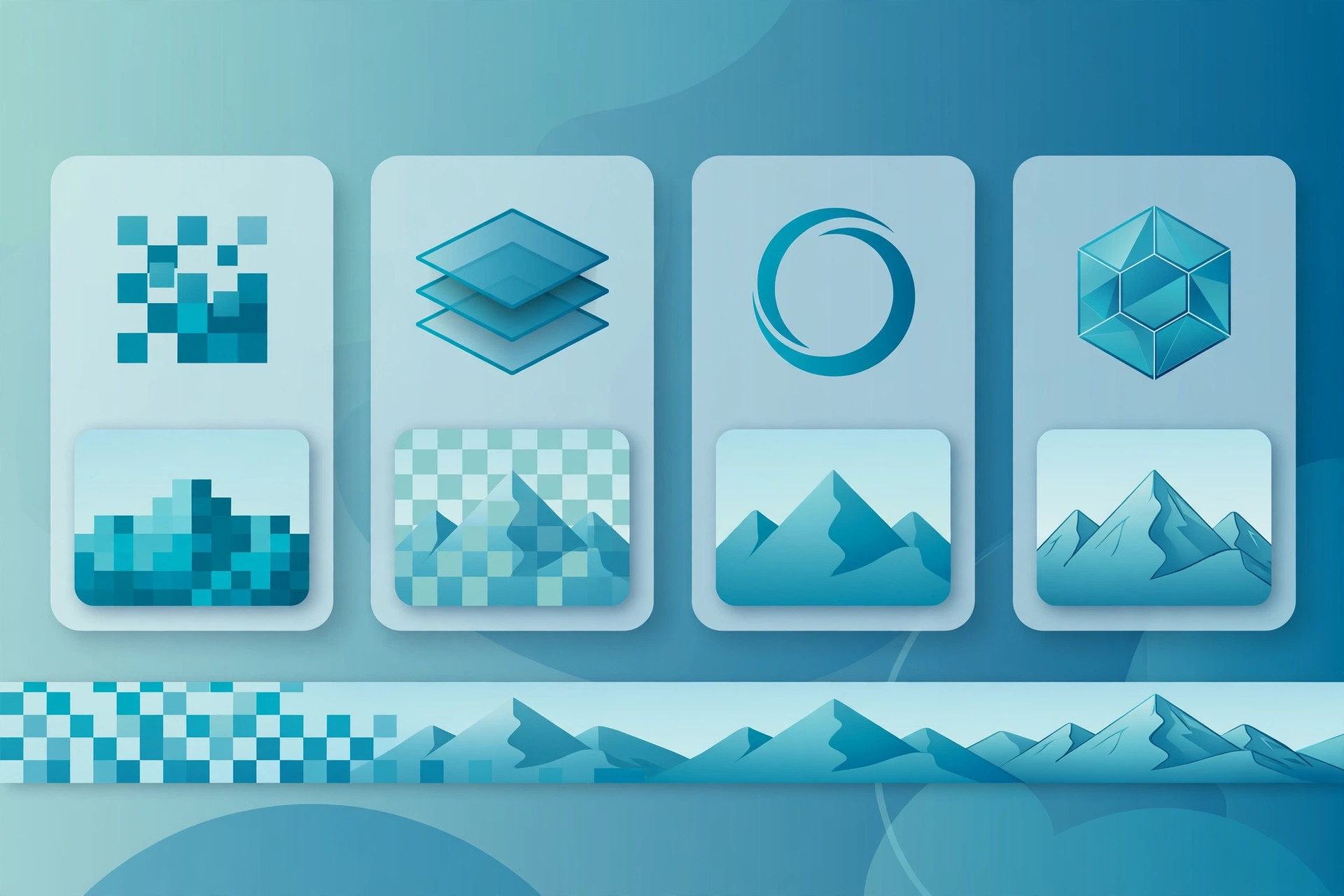
The image quality dropdown offers three settings, and choosing well is the difference between a crisp page and a soft one. Standard renders at 1.5 times scale, High at 2.5 times scale, and Maximum at 4 times scale. Scale here means how many pixels the tool draws for each point of the original page, so a higher scale means a larger, sharper image that holds up better when zoomed or printed.
| Quality setting | Scale | File size | Best for |
|---|---|---|---|
| Standard | 1.5x | Smallest | Quick drafts, chat previews, fast sharing |
| High | 2.5x | Medium | Presentations, social posts, everyday use |
| Maximum | 4x | Largest | Large format printing, detailed diagrams, archival images |
High is the default for a good reason, and it suits almost everything. A page rendered at High looks sharp on screen, drops cleanly into a slide, and reads comfortably when printed at normal sizes. Standard is the right pick when speed and small files matter more than fine detail, such as a quick preview sent in chat. Maximum is for the cases where detail genuinely matters: a large poster print, a technical diagram with tiny labels, or an image you plan to crop tightly and still want sharp. The cost of Maximum is file size, and on a very long document it also costs time and memory, so reserve it for when you actually need it.
There is one honest limitation to understand about quality. JPG is a compressed format, and images with lots of fine text may show slight softness if you zoom in very far. For most sharing and presentation uses the quality is more than adequate, but if you need pixel perfect archival copies, keep the original PDF alongside the images. The JPG is the working copy. The PDF remains the master, and that division of labour is exactly how the two formats are meant to be used together.
What the tool does with your pages
Each page of your PDF becomes its own JPG, and the whole set arrives in one ZIP file. That design choice is worth appreciating, because the alternatives are all worse. Downloading pages one at a time from a long document is tedious. Getting a single image of the whole document is useless. A ZIP of individually named page images is the format that actually fits how people work: unzip, pick the pages you need, and move on.
The tool converts all pages, not a selection. There is no page picker, and that is a deliberate simplicity rather than an oversight. Picking pages in advance sounds convenient, but it adds a step where mistakes happen, and the cost of converting pages you do not need is trivial. Convert everything, keep what you want, and ignore the rest. If your document is very long, though, there is a smarter approach. Very long PDFs, running into hundreds of pages, take longer and use more memory, and on older devices the sensible move is to convert the document in smaller chunks using a PDF Splitter first, then convert each chunk separately. You get the same images, with a calmer browser.
Text handling deserves a clear warning, because it surprises people. Once a page becomes a JPG, the text in it is no longer selectable, copyable, or searchable. It is a flat picture of the page. That is fine for a slide or a post, but it means you should never convert your only copy of a document and delete the PDF. If you still need to search the text, copy a paragraph, or fill in a form, you need the original. Conversion is a one way street, and keeping the PDF is the price of travelling down it safely.
When JPG beats PDF, and when it does not
The strongest cases for JPG are all about reaching people. Presentations are the classic one: dropping a page image straight into PowerPoint or Google Slides beats screenshotting, because there is no phone frame, no status bar, and no accidental cropping to clean up. Sharing online is another: a document page posted as an image on social media or in a marketplace listing is visible instantly, while a PDF attachment asks the viewer to do work. Quick previews work the same way. Sending someone a single page as an image in chat is friendlier than sending a whole file and telling them to look at page seven.
Thumbnails are a quieter use that adds up over time. If you keep a library of documents, a folder of first page images lets you recognise each document at a glance, while a folder of PDFs all looks identical until opened. Cover images for download pages work the same way. And compatibility is the final argument: some people, on some devices and apps, handle images far better than PDF attachments, and a JPG reaches them without a lecture about installing a reader.
But there are times to leave the PDF alone. If the recipient needs to search, copy, or print the document at full quality, send the PDF. If the document is a form someone must fill in, a picture of it is useless. If the text must remain accessible for screen readers, an image actively harms accessibility, because the words become invisible to assistive technology. The rule of thumb is simple: convert when people need to look at a page, and keep the PDF when people need to use the document. Most of the time you will do both, sending the picture for convenience and keeping the PDF for substance.
Common problems and quick fixes
The most common surprise is a password protected PDF that refuses to convert. Encrypted PDFs cannot be opened in the browser, so the tool cannot render them at all. The fix is to remove the password first, with proper authorisation from whoever owns the document, and then convert the unlocked copy. Never try to work around a password on a document you do not have the right to open. That is not a technical limitation to dodge. It is a boundary to respect.
Soft or blurry images are the second complaint, and the fix is almost always the quality setting. If you converted at Standard and the result looks soft when zoomed, convert again at High or Maximum. The reverse also applies: if your ZIP is enormous and slow to download, you probably converted at Maximum when High would have done. Reconverting at the right setting is cheap, because the original PDF is untouched, so do not settle for a soft image or a bloated file when a second pass at the right setting takes seconds.
Missing or jumbled pages usually trace back to the PDF itself rather than the converter. A document with an unusual page order, blank pages, or pages of mixed sizes converts faithfully, which means it reproduces whatever oddities the PDF already had. Check the PDF first. If the PDF itself has the problem, fix it there, for example by reordering or removing pages, and then convert the cleaned document. And if a very long document seems to stall, split it into chunks first. A browser rendering hundreds of pages in one go is doing a lot of work, and smaller chunks convert faster and more reliably than one heroic attempt.
Building a tidy workflow around converted pages
Converting one PDF is easy. Converting PDFs every week without drowning in files takes a small system, and it is worth setting one up. Keep a single folder for converted page images, organised by document name, and keep the original PDFs in a separate folder. When you need a page for a presentation, you know exactly where to look, and you never have to wonder whether the image in your slides folder is the latest version. If you use the same pages repeatedly, such as a company profile sheet or a certificate, keep a small set of favourite page images ready to reuse instead of converting the same document again each time.
Naming helps too. The tool names images in page order, which is a good start, but renaming the ones you actually use makes them findable later. A file called page-07.jpg tells you nothing in six months. A file called annual-report-page-07-revenue.jpg tells you everything. Thirty seconds of renaming when you save the images saves a frustrated search later, and it costs nothing at the time.
If the PDF itself is bloated with oversized images, slim it down before converting with the Compress PDF tool, which also keeps the resulting JPGs smaller. Our guide on how to compress a PDF online free walks through that step in detail.
Finally, think about size before you share. A Maximum quality image of a detailed page can be large, and sending several of them in chat or email can be slow for the recipient. For sharing, High is usually the sweet spot, and if you need to send many pages, consider whether the recipient would actually prefer the PDF after all. The best workflow is not the one that converts the most pages. It is the one that puts the right page, at the right quality, in front of the right person, with the least fuss.
Frequently asked questions
Can I convert only some pages, not the whole PDF?
The tool converts all pages into one ZIP file, so simply unzip it and keep the images you need. If your document is very long and you only want a small section, split the PDF into a shorter file first and convert that, which keeps the download small and the conversion fast.
Will the text stay selectable in the JPG?
No. A JPG is a flat picture of the page, and text becomes part of the image, so it cannot be selected, copied, or searched. If you still need the document itself for searching or copying, keep the original PDF alongside the images and treat the JPGs as sharing copies.
What about password protected PDFs?
Encrypted PDFs cannot be opened in the browser, so the tool cannot convert them. Remove the password first, with proper authorisation from the document owner, and then convert the unlocked copy. This protects documents that were locked for a reason, and it is a limit worth respecting rather than working around.
Can I get PNG instead of JPG?
This tool outputs JPG only, which is the best choice for documents with photos and gradients, since JPG keeps those smooth at modest file sizes. For razor sharp text screenshots, a PNG version would preserve edges slightly better, at the cost of larger files, but for the presentation, sharing, and listing uses this tool is built for, JPG is the right format.
Is there a page limit on the PDF to JPG converter?
There is no fixed page limit. Very long PDFs, running into hundreds of pages, simply take longer and use more memory, so on older devices it is best to convert large documents in smaller chunks using a PDF splitter first. For the everyday documents most people convert, which run to a handful of pages, the whole job takes seconds.