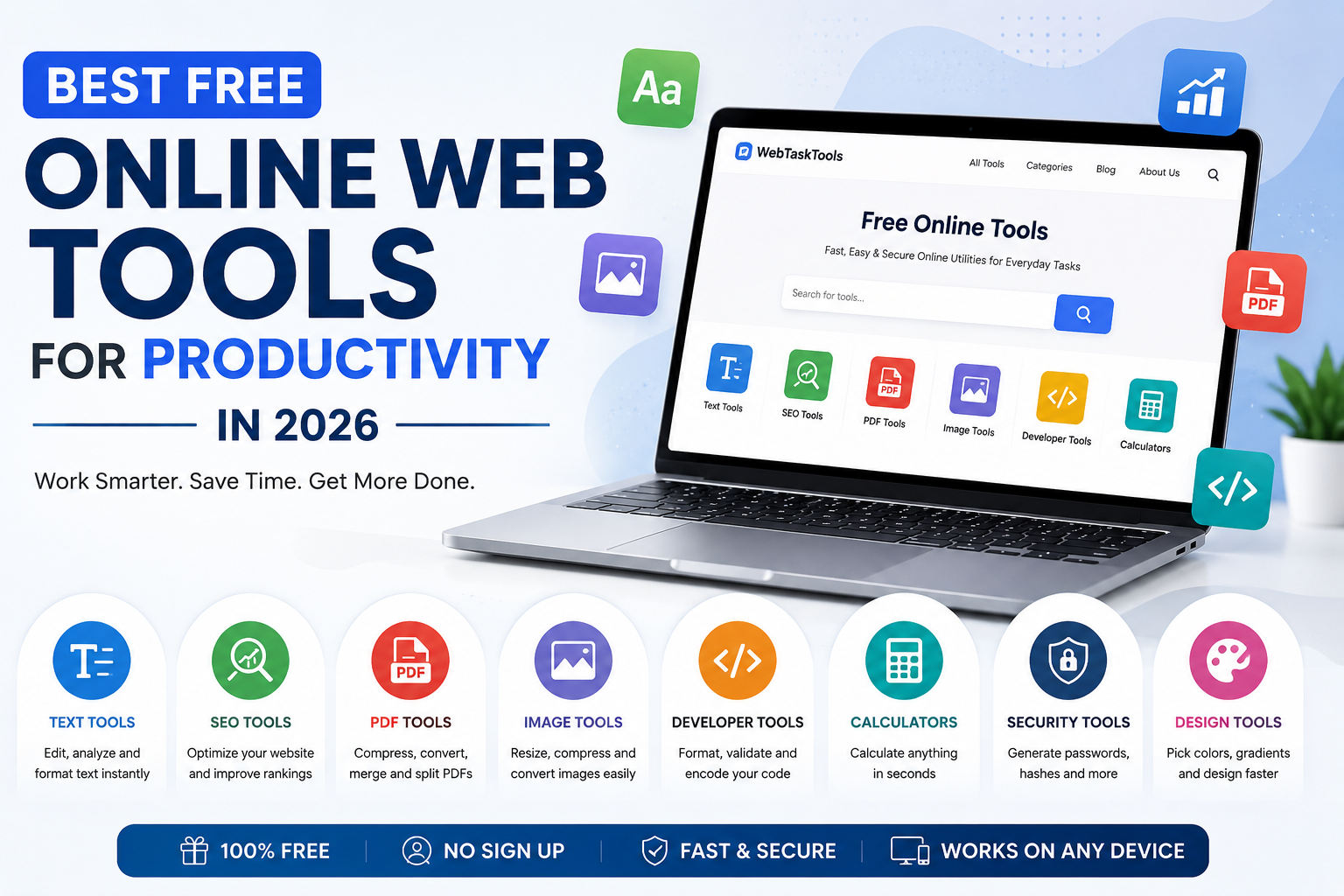
Discover the best free online web tools for SEO, PDF, text, image, developer, and productivity tasks. Save time with fast, secure browser-based tools.
In today's digital world, productivity is all about working smarter, not harder. Whether you're a student, professional, marketer, developer, designer, or business owner, the right online tools can save hours of work every week.
Start with documents: the free PDF tools hub — merge, split, and compress PDFs right in your browser.
The best part? You don't need expensive software to stay productive. Many browser-based tools are completely free and can help you edit text, convert files, calculate values, optimize websites, and complete everyday tasks in seconds.
In this guide, we'll explore the best free online web tools for productivity in 2026 and explain how they can make your daily workflow faster and more efficient.
Why Use Online Web Tools?
Unlike traditional desktop software, online tools require no installation and work directly in your browser.
Benefits include:
- Free to use
- Accessible from any device
- No software installation
- Fast and lightweight
- Works on Windows, Mac, Linux, Android, and iPhone
- Perfect for personal and professional use
Whether you're working from home, in the office, or on the go, browser-based utilities help you get more done with less effort.
1. Text & Writing Tools
Text tools are among the most frequently used online utilities. They help writers, students, bloggers, and professionals edit and format content quickly.
Popular text tools include:
- Character Counter
- Case Converter
- Remove Duplicate Lines
- Reverse Words
- Emojis Remover
- List Alphabetizer
- Slug Generator
- Lorem Ipsum Generator
These tools simplify content editing and improve writing efficiency.
2. SEO Tools
SEO professionals rely on fast utilities to optimize websites and improve search rankings.
Useful SEO tools include:
- Meta Tags Checker - see exactly what search engines read on any page: titles, descriptions, and social tags.
- Keyword Density Checker - check whether your target phrases appear naturally or are stuffed.
- Safe URL Checker - screen suspicious links before you click them.
- SSL Lookup - verify a site's certificate is valid and current.
- DNS Lookup - inspect the records behind any domain.
- Website Hosting Checker - find out where any site is hosted.
- HTTP Headers Lookup - see what a server actually returns.
- URL Redirect Checker - follow redirect chains to their final destination.
These tools help improve on-page SEO without requiring complex software.
3. PDF Tools
Managing PDF documents shouldn't require premium software.
Popular PDF tools include:
These tools save time when working with documents for school, business, or personal use.
4. Image Tools
Images are essential for websites, social media, and presentations.
Useful image utilities include:
Optimized images improve website speed and user experience.
5. Developer Tools
Developers often need quick browser-based utilities for coding and debugging.
Popular developer tools include:
- JSON Validator & Beautifier
- HTML Minifier
- CSS Minifier
- JS Minifier
- Base64 Encoder
- Base64 Decoder
- URL Encoder
- UUID v4 Generator
These utilities reduce development time and improve workflow.
6. Generators & Converters
Everyday generation and conversion jobs become easier with online utilities.
Popular utilities include:
- QR Code Generator
- Password Generator
- UUID v4 Generator
- Binary Converter
- Hex Converter
- Color Converter
- Celsius to Fahrenheit
- Slug Generator
They provide instant and accurate results without downloading apps.
7. Security & Encoding Tools
Protecting and converting data is an important part of digital productivity.
Helpful tools include:
- Password Generator
- Password Strength Checker
- MD5 Generator
- SHA-256 Generator
- Base64 Encoder
- Base64 Decoder
These tools are especially useful for developers and IT professionals.
8. Color & Design Tools
Designers frequently use quick online utilities for selecting colors and creating palettes.
Popular tools include:
These help speed up web and graphic design projects.
Why Choose WebTaskTools?
WebTaskTools is designed to provide fast, secure, and easy-to-use online utilities for everyone. Whether you're editing text, optimizing your website, converting files, or performing quick calculations, our tools work instantly online—no downloads or sign-ups required.
What makes WebTaskTools different?
- Free to use
- Fast processing
- Mobile-friendly design
- Secure browser-based tools
- No installation required
- Regularly updated utilities
- Easy-to-use interface
- Supports students, professionals, marketers, developers, and businesses
Our goal is to help users save time by offering a growing collection of reliable productivity tools in one place.
Tips for Boosting Productivity in 2026
To get the most out of online tools:
- Bookmark your favorite utilities.
- Use browser-based tools instead of downloading unnecessary software.
- Compress images before uploading them to websites.
- Optimize your SEO before publishing content.
- Automate repetitive tasks whenever possible.
- Keep your files organized with online document tools.
- Use secure password generators for better online safety.
Small improvements in your daily workflow can save hours every month.
Final Thoughts
The right online tools can dramatically improve your productivity in 2026. From text editing and SEO optimization to PDF management, image conversion, and developer utilities, browser-based tools help you complete tasks faster while keeping your workflow simple.
At WebTaskTools, we're committed to providing a growing collection of free online utilities that are fast, secure, and easy to use. Whether you're a student, freelancer, developer, digital marketer, or business owner, you'll find tools that help you work more efficiently every day.
Start exploring our free online tools today and discover how much time you can save with the right productivity resources at your fingertips.
Putting It Together: Three Productivity Workflows
The content publisher: draft in any editor, check length with the Character Counter, generate a clean slug, verify meta tags, compress the featured image, publish. What used to involve four apps now happens in five browser tabs.
The freelancer admin hour: merge the month’s invoices into one PDF, generate a QR code linking to your payment page for the invoice footer, and create strong unique passwords for two new client accounts. One focused hour, zero software installed.
The developer deploy check: validate the JSON config, minify HTML/CSS/JS, encode the share URLs, and verify the SSL certificate and DNS records of the staging site. Fast, repeatable, and it catches the mistakes that cause 2 AM pages.
How to Choose Which Tools Deserve a Bookmark
Ask three questions: will I use this monthly or more? Does it do the job without an account? Does it process data in my browser (best for privacy)? A "yes" to all three means bookmark it on the bar. Everything else lives one search away in the category hubs. Revisit the folder twice a year — delete what you stopped using. A lean toolkit beats a sprawling one.
Browser-Based vs. Installed: An Honest Comparison
Installed software wins for heavy, sustained work — video editing, IDE-level coding, print design. Browser tools win for quick, occasional jobs: the five-minute tasks that dominate real days. The mistake is using a cannon for every mosquito: installing a 400 MB app to convert one file. Match the tool weight to the job weight. Most knowledge workers discover that the majority of their micro-tasks are browser-shaped once they try.
Privacy and Security Ground Rules
- Prefer local processing for anything personal: if the tool works offline after loading, your files never left your device.
- One strong password per site, generated randomly and stored in a password manager. The Password Generator plus the Strength Checker make this painless.
- Verify before you trust: check SSL certificates, look up unfamiliar domains, and inspect suspicious links before clicking.
- Keep originals: compression and conversion should happen on copies; masters stay untouched.
Troubleshooting Common Hiccups
- A tool page will not load: disable aggressive ad-blockers for the page and hard-refresh; most tools are single-page apps that need their scripts.
- An upload stalls: the file may exceed browser memory — split or compress it first, then process the parts.
- Output looks wrong: re-check input settings before blaming the tool; dimensions, format, and quality options cause most surprises.
Frequently Asked Questions
Are these tools really free? Yes — the utilities linked here are free for everyday use with no account required.
Do they work on phones? Yes. The tools are mobile-friendly; test your most-used ones in a mobile browser once so urgent mobile use is never the first test.
Which tools should a beginner bookmark first? Character Counter, Image Compressor, Merge PDF, Password Generator, and QR Code Generator cover the most common jobs across roles.
The Hidden Cost of App-Switching
Every time you leave your current context — open a new program, wait for it to load, find the feature — you pay a small attention tax. Researchers call the residue "attention residue": part of your mind stays stuck on the previous task. Browser tools minimize this tax because the tool opens in a tab next to your work, does one job, and closes. You never really "leave." Over a day of twenty micro-tasks, that difference is the gap between finishing at six and finishing at seven-thirty.
Build a Personal SOP Library
The real productivity unlock is not the tool — it is the repeatable process around it. Write down your recurring jobs as tiny checklists: "Monthly invoices: export, merge PDFs, name files YYYY-MM-client, back up." "Publishing: draft, character count, slug, meta check, compress hero image, schedule." Store these in a notes app. Each checklist turns a thirty-minute fuzzy chore into a ten-minute mechanical run, and anyone covering for you can follow it.
For Teams: Shared Toolkits Beat Tribal Knowledge
In teams, the same small jobs get solved ten different ways. Standardize: agree on one PDF merger, one image compressor, one JSON validator, and put them in the team wiki. New hires onboard faster, file formats stay consistent, and nobody emails IT asking how to shrink a PDF. The tools are free, so there is no licensing discussion — just a shared bookmarks folder and five minutes of agreement.
The Twice-Yearly Toolkit Review
Set a calendar reminder: every six months, open your tools bookmark folder and audit it. Which five did you actually use? Delete or demote the rest. Check whether any tool added annoying limits or started demanding accounts — free tools change, and loyalty should go to the workflow, not the brand. Then browse the category hubs for anything new that matches jobs you have started doing. Fifteen minutes, twice a year, keeps the toolkit sharp.
Accessibility and Low-End Devices
One underrated virtue of browser tools: they run on almost anything. A five-year-old laptop, a budget phone, a library computer — if it has a modern browser, the toolkit works. No installs means no admin rights needed, no disk space consumed, and no compatibility roulette. For students, volunteers, and anyone on modest hardware, that is not a convenience; it is the difference between having the capability and not.
When a Browser Tool Is Not Enough
Honesty matters: browser utilities have limits. Very large video files, batch-processing thousands of images, print-grade color management, and complex document layouts still belong to desktop software. The skill is knowing the boundary. A good rule: if the job takes under ten minutes and involves one file, stay in the browser. If it is an afternoon-long project with dozens of assets, open the heavy application. Using each where it shines is the actual productivity system.
Getting Started Today: A 15-Minute Setup
- Minutes 0-5: bookmark the five core tools — Character Counter, Image Compressor, Merge PDF, Password Generator, QR Code Generator.
- Minutes 5-10: open each once and run a real task through it, so the first urgent use is never the first test.
- Minutes 10-15: write down your three most common micro-tasks and pin the matching tools next to them in your notes.
That is the whole setup. Everything after this is just using the toolkit until reaching for it becomes reflex — which, for most people, takes about a week.
Real-World Example: The Event Organizer
Consider someone organizing a community workshop. They need a registration QR code for the poster (QR Code Generator, two minutes), a merged PDF of the handouts (Merge PDF, three minutes), compressed speaker photos for the event page (Image Compressor, five minutes), and unique passwords for the event accounts (Password Generator, one minute). Eleven minutes of tool time for jobs that once meant asking a "tech person" for help. That independence — solving it yourself, now — is the quiet superpower of a good web-tool toolkit. Multiply it across every small project in a year, and the case for bookmarking these utilities makes itself. Start today, with just one single tool.
"Productivity is not about doing more things. It is about removing the friction between intending a small task and finishing it."