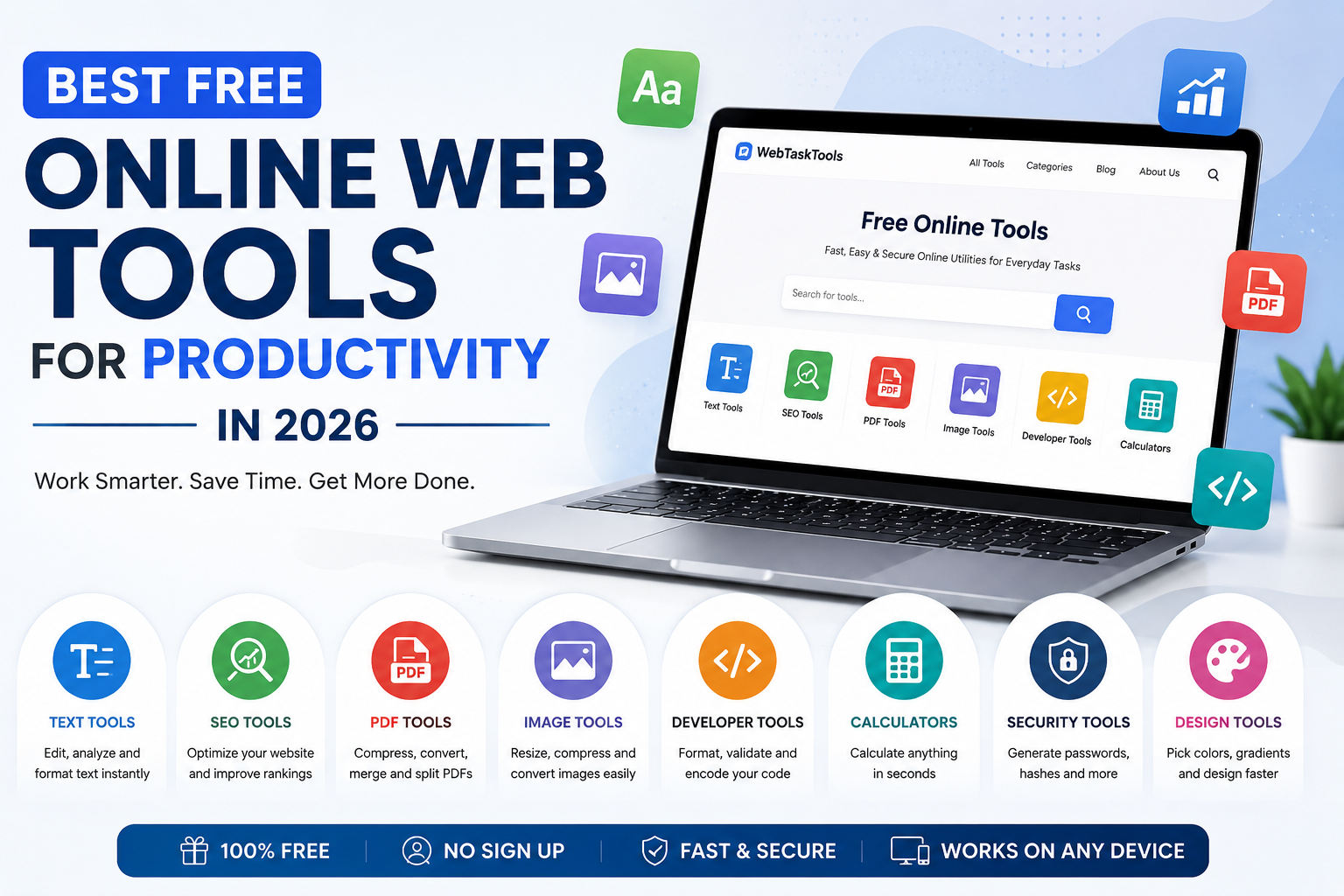
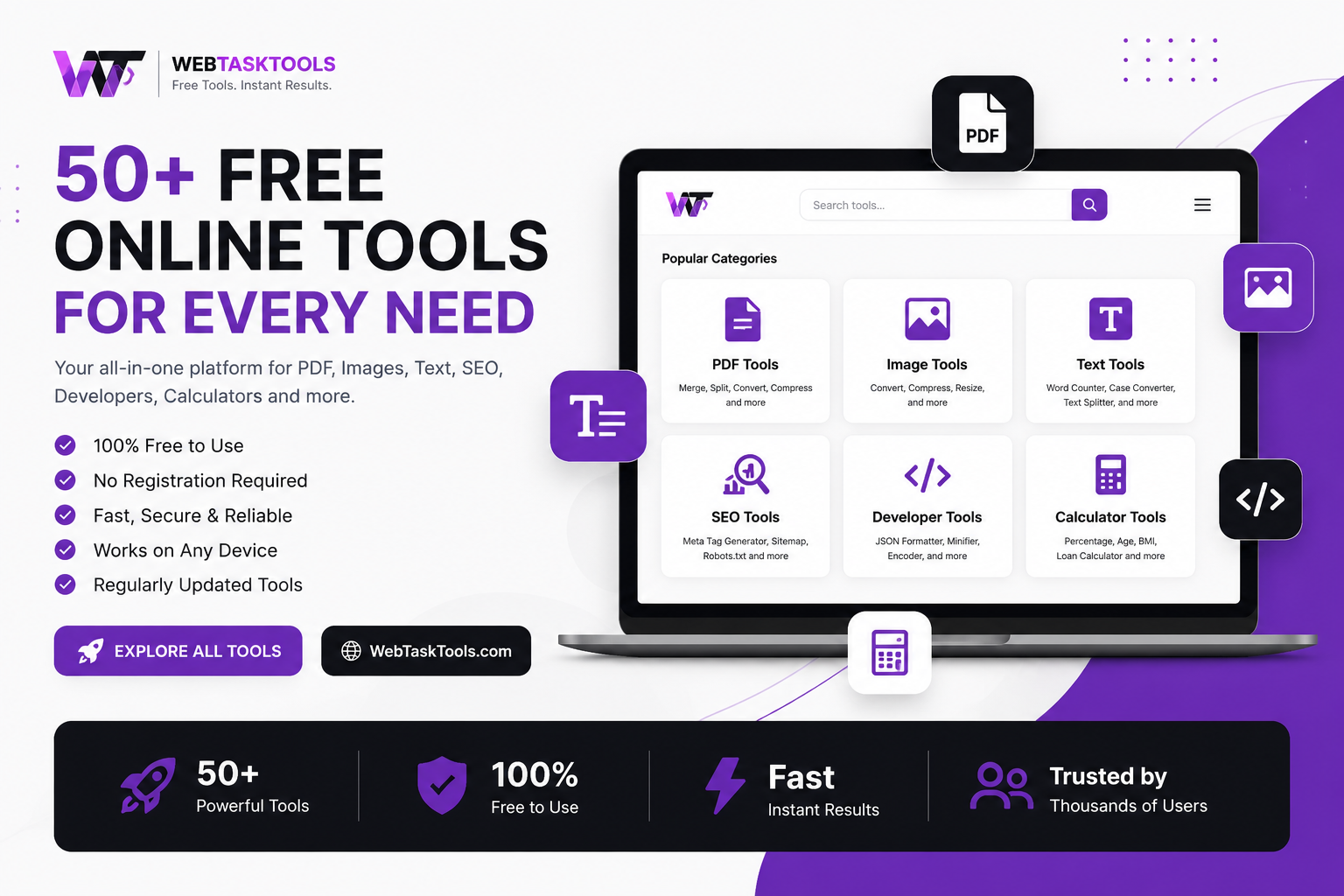
Looking for all-in-one web solutions? Explore the essential tools at WebTaskTools to simplify your daily tasks, from text editing to SEO analysis.
In today’s fast-paced digital world, finding the right tools to get things done quickly is a game-changer. Whether you are a student, a developer, or a content creator, we often find ourselves searching for quick solutions to manage files, optimize text, or analyze website performance.
Start with the most-used utility of all: the free character counter — count characters and words in any text instantly, no signup.
That is exactly why we created WebTaskTools.
It is a free, browser-based collection of everyday utilities. No sign-ups, no installations, no fees. Just open the tool you need and get the job done.
Text and writing tools are among the most used. Our character counter (which counts words too), case converter help writers, students, and marketers format content in seconds, while utilities like Remove Duplicate Lines clean up messy lists instantly.
What Makes a Web Tool "Essential"?
Not every online utility earns a bookmark. The ones that do share four traits: you reach for them weekly, they do one job well, they work without an account, and they respect your data by processing in the browser where possible. This guide tours the categories that meet that bar — text, PDF, image, developer, SEO, security, and generators — with the standout tools in each.
Text and Writing Tools: The Daily Drivers
Writers, students, marketers, and developers all manipulate text constantly. The essential text toolkit:
- Character Counter — counts characters, words, sentences, and lines. Indispensable for social posts with limits, meta descriptions, and essays with word counts.
- Case Converter — switch between UPPER CASE, lower case, Title Case, and sentence case in one click. A lifesaver when pasting SHOUTING spreadsheet headers into a report.
- Remove Duplicate Lines — deduplicate lists instantly; essential for cleaning keyword lists, email lists, and data exports.
- Lorem Ipsum Generator — placeholder text for mockups and layouts.
- Slug Generator — turn headlines into clean URL slugs.
- Text to Speech — listen to documents instead of reading them; great for proofreading by ear.
The pattern: each tool removes a tiny friction you would otherwise solve with manual effort or a heavy app. Multiplied across dozens of uses a week, the savings are real — many people find they reclaim a few hours weekly once a bookmark toolkit like this is set up, though your exact number depends on how much text wrangling your work involves.
PDF Tools: Taming the Uneditable
PDFs are everywhere and stubborn by design. The PDF tools hub covers the core moves:
- Merge PDF — combine invoices, chapters, or scanned batches into one file.
- Split PDF — extract exactly the pages you need from a long document.
- Compress PDF — shrink oversized files for email and uploads.
- PDF to JPG — turn pages into images for slides and social posts.
- Images to PDF — bundle photos or scans into a single PDF.
Image Tools: Faster Pages, Better Posts
Images are usually the heaviest part of any web page. The image toolkit keeps them lean:
- Image Compressor — shrink file sizes with barely visible quality loss.
- Image Resizer — exact pixel dimensions for social platforms and web layouts.
- PNG to JPG and JPG to WebP — convert between formats for the best size-to-quality tradeoff.
- Background Remover — isolate subjects for thumbnails and product shots.
- Image to Base64 — embed small images directly in code or CSS.
Developer and Webmaster Utilities
Developers live in the browser already, so browser-based dev tools fit the workflow:
- JSON Validator & Beautifier — format and validate JSON for APIs and structured data.
- HTML Minifier, CSS Minifier, JS Minifier — strip whitespace and comments for faster pages.
- Base64 Encoder and Base64 Decoder — encode data URLs, tokens, and email-safe payloads.
- URL Encoder — make special characters safe in links and query strings.
- MD5 and SHA-256 hash generators — checksums and fingerprints.
SEO, Safety, and Lookup Tools
Understanding what is behind a website is a superpower:
- Keyword Density Checker and Meta Tags Checker — on-page SEO basics.
- Whois Lookup and DNS Lookup — see who owns a domain and where it points.
- Safe URL Checker — inspect a suspicious link before you click.
- Website Hosting Checker and SSL Lookup — identify hosting providers and certificate details.
Generators: Passwords, QR Codes, and More
Some jobs are pure generation:
- Password Generator — strong, random passwords in one click. Pair with a password manager and never reuse.
- QR Code Generator — Wi-Fi codes, menus, links, and contact cards as scannable codes.
- Hashtag Generator — relevant tags for social posts.
- UUID Generator — unique identifiers for development.
Building Your Bookmark System
A toolkit only saves time if you can find the right tool in seconds. Set up a bookmarks folder with short names ("compress img", "merge pdf", "json fmt"), put the five you use most on the bookmarks bar, and learn the habit of reaching for the bookmark before installing anything. Review the folder twice a year and drop tools you never touch.
What "Browser-Based" Means for Your Privacy
Some browser utilities process files entirely in your browser tab — when a tool works that way, the file never leaves your device. You can verify it yourself: if the tool keeps working after you disconnect from the internet, your files are staying on your device. That is the strongest privacy posture an online tool can offer: nothing to leak, no retention policy to read. As a rule of thumb, if a tool works with your Wi-Fi off, your data stayed local. Prefer that kind of tool for anything personal or work-sensitive.
Frequently Asked Questions
Are these tools really free? Yes — the utilities linked in this guide are free to use, with no account required for everyday tasks.
Do I need to install anything? No. Everything runs in a modern browser on desktop or mobile.
Which five should I bookmark first? Character Counter, Image Compressor, Merge PDF, Password Generator, and QR Code Generator cover the most common jobs.
Is my data safe? A tool that processes in your browser has no need to transmit your files — test it by disconnecting: if it still works offline, your data stayed put. For anything sensitive, prefer those and check the privacy policy.
"The best tool is the one you can reach in five seconds. Build the bookmark folder once, and every future task starts faster."
A Week With the Toolkit: Where the Hours Go
Monday: a client sends a 40-page PDF; you need 3 pages. Split PDF, two minutes, done — no email back asking for "just those pages." Tuesday: a blog draft is 200 words over the limit. Character Counter plus a tight edit pass, ten minutes. Wednesday: product photos for the site are 4 MB each. Image Compressor brings twelve images under 200 KB total, and the page loads visibly faster. Thursday: an API returns a wall of minified JSON. The JSON Validator formats it, and the bug is obvious in seconds. Friday: a suspicious link arrives by email. Safe URL Checker plus a Whois Lookup take ninety seconds and confirm it is a days-old phishing domain. None of these moments feels dramatic. Together, they are the difference between a week of flow and a week of friction.
For Students: The Assignment Toolkit
Student work is a pipeline of the same chores: checking essay word counts, formatting citations, compressing images for slide decks, and merging scanned pages into one submission PDF. Bookmark the Character Counter, Merge PDF, Image Compressor, and Case Converter at the start of term. The habit that pays most: run every image through the compressor before it goes into a presentation — decks stay small, uploads never fail, and professors never receive a 90 MB file.
For Freelancers and Creators: Client-Ready Output
Freelancers are judged on polish. A QR code on an invoice linking to a payment page, compressed images that make a client site fast, clean slugs on every article, and meta tags checked before publishing — these are small touches clients notice. The Password Generator belongs in every freelancer workflow too: unique, strong passwords for every client account, stored in a password manager. Free tools keep overhead near zero, which matters when you are the entire IT department.
For Developers: The Browser as a Workbench
Developers already keep dozens of tabs open; a few more for utilities is natural. The daily-use set: JSON Validator & Beautifier for API responses, Base64 Encoder/Decoder for tokens and data URLs, URL Encoder for query strings, hash generators for checksums, and the minifiers before deploy. The deeper value is context: staying in the browser means no context switch to a desktop app, and browser-based processing keeps test data with secrets on your own machine - provided the tool genuinely processes locally, which you can verify with the offline test above.
The 80/20 Rule of Online Tools
Roughly twenty percent of utilities handle eighty percent of jobs. If you only adopt a handful, make them the ones with the highest frequency: a text counter, an image compressor, a PDF merger/splitter, a password generator, and a QR code generator. Everything else can be discovered on demand — the category hubs (/pdf-tools/, /video-tools/, /text-tools/, /developer-tools/, /checker-tools/, /image-manipulation-tools/) are there when a rarer job appears. Depth beats breadth: five tools you know cold outperform fifty you have to re-learn each time.
Common Mistakes Beginners Make
- Installing software for a one-minute job. If a browser tool does it, the install is pure overhead — plus updates, plus disk space, plus a new attack surface.
- Uploading sensitive files to random sites. Prefer tools that process locally in the browser, especially for contracts, IDs, and personal photos.
- Skipping the verify step. After compressing, converting, or merging, open the result and check it before sending it on. Ten seconds of checking beats an embarrassing re-send.
- Bookmarking everything. A 200-bookmark "tools" folder is a junk drawer. Keep the weekly-use tools on the bar; find the rest via the hubs when needed.
- Ignoring mobile. Half of these jobs happen on a phone. Test your key tools in a mobile browser once, so the first urgent mobile use is not also the first test.
How to Evaluate Any New Online Tool
New tools appear constantly. A thirty-second evaluation: does it require an account for a basic job (bad sign)? Does it work offline after loading (good sign — local processing)? Is the output clean, without watermarks or artificial limits on normal use? Is there a clear privacy policy? Does the result open correctly in its target app? Tools that pass all five are keepers; tools that demand signup before showing you anything rarely earn it.
Troubleshooting: When a Tool Misbehaves
- Page will not load: check your connection, disable aggressive ad-blockers for the page, and try a hard refresh. Most tool pages are single-page apps that need their scripts allowed.
- Upload stalls: very large files can hit browser memory limits. Compress or split first, then process the parts.
- Output looks wrong: re-check your input settings (dimensions, format, quality). Nine times out of ten the input — not the tool — was the problem.
- Download does not start: check the browser download bar and popup settings; some browsers block multiple automatic downloads.
Jobs You Forget Until They Bite
Some tools earn their bookmark through rare but urgent jobs. The Whois Lookup when you need to contact a domain owner or report abuse. The SSL Lookup when a client asks why browsers flag their site. The DNS Lookup during a hosting migration. The Background Remover when a thumbnail is due in an hour. You will not use these weekly — but when you need one, you need it now, and knowing exactly where it lives is the whole value. Add the category hubs to your bookmarks even for tools you rarely touch.
Teaching Others the Toolkit
The fastest way to lock in these habits is to teach them: show a colleague the three-click PDF split, send a friend the QR code generator for their event, or walk a student through the character counter before essay season. Every explanation sharpens your own workflow — and a team that shares a toolkit stops losing time to the same small problems twice.
One last suggestion: pick a single tool from this guide today — the character counter is the easiest win — and use it for something real within the hour. A toolkit becomes essential the moment it saves you once; after that, you will never go back to doing these jobs the slow way.
"Essential does not mean many. It means the few tools you trust, bookmarked where your hand can find them, ready before the job appears."