
Extract text from an image online free with OCR in your browser: screenshots, photos and scans in English, Urdu, Arabic, Hindi, Spanish or French. No sign-up.
If you need to extract text from an image online, you have probably just hit the same wall everyone hits. There is a screenshot of an error message you cannot select, a photo of a receipt you need to copy into a spreadsheet, or a scanned page you want to quote, and the text is right there on your screen, completely uncopyable. Retyping it is slow, boring and error prone, especially when it is long. This guide shows you how to pull that text out in about a minute with the free Image to Text Converter on WebTaskTools, step by step, and it explains honestly how accurate the result will be and what to do when it is not quite right.
The tool uses OCR, which stands for optical character recognition. That is a grand name for a simple idea: software looks at the shapes in a picture and works out which letters they are, then hands you back ordinary text you can copy, edit and paste anywhere. It works on screenshots, phone photos, scanned documents and memes, anything with readable printed text. And this particular tool runs entirely in your browser with the open-source Tesseract engine, so your images are never uploaded anywhere. That matters more than it sounds, because the images people need text from are often private: a receipt, a medical letter, a work document, a message from a friend. With this tool, the picture never leaves your own device.
The best part is that there is nothing to install and no account to create. You open the page, drop in the image, pick the language, and copy the result. The whole thing takes about a minute for a normal screenshot, and once you have done it twice you will wonder why you ever retyped anything by hand. This guide covers the steps, the languages, the accuracy you can expect, the mistakes that make OCR fail, and the everyday jobs where it saves the most time.
What does the Image to Text tool do?
Got a screenshot of an error message, a photo of a receipt, or a scanned page you cannot copy from? This free tool reads the text out of the image using OCR and hands it back to you as plain text you can copy, edit and paste anywhere. It works on screenshots, phone photos, scanned documents and memes, anything with readable printed text. Everything runs in your browser with the open-source Tesseract engine, so your images are never uploaded anywhere.
That last point is worth pausing on, because it is the difference between this tool and a lot of the alternatives. Many online OCR services ask you to upload your image to their server, process it there, and then let you download the result. That is fine for a public flyer, but it is a poor way to handle a photo of a receipt, a prescription, a payslip or a private message. Here the OCR runs locally with the open-source Tesseract.js library. The language model downloads once from a content delivery network, but your image is never sent to any server. It is private by design, not private by promise, and there is no account that could link the image to you even if someone wanted to.
The tool accepts the image formats people actually use: PNG, JPG, WebP, BMP and GIF. Screenshots are usually PNG, phone photos are usually JPG, and both work well. WebP is the format most browsers save images in these days, and it works too. BMP and GIF are older formats that still turn up in scanned archives and downloaded images, and they are covered as well. If your file is one of those five, you can drop it straight in. If your document is a PDF, you will need one extra step, which is covered later in this guide.
How to extract text from an image: step by step
Here is the whole process, start to finish. Four steps, about a minute, and most of that minute is the tool reading the image.
- Upload your image. Click the upload area or drag a screenshot or photo onto it. A preview appears so you can confirm it is the right file before anything else happens. If you grabbed the wrong screenshot, this is the moment to notice, not after you have copied the wrong text into a document.
- Pick the language. Choose the language the text is written in. English is the default. Urdu, Arabic, Hindi, Spanish and French are supported too. Pick the language before you extract, because matching the language gives the best accuracy. A page of Urdu text read with the English model will come back as guesswork, while the Urdu model will read it properly.
- Click Extract Text. The tool downloads the OCR model once, a few megabytes, then reads your image. A progress bar keeps you posted while it works, so you can see it is actually doing something rather than staring at a frozen page. On a clear screenshot this takes seconds. On a large or busy photo it takes a little longer.
- Copy your text. The extracted text appears in the result box. Hit Copy to grab it, then paste it into Word, WhatsApp, an email, anywhere. Give the result a quick read before you paste it somewhere important, because even the best OCR makes the occasional mistake, and a thirty-second proofread is cheaper than a wrong number in a document.
That is the whole workflow, and it is deliberately boring. There are no settings to tune, no quality sliders, no output format to choose, because the job is simple and the tool keeps it simple. Upload, language, extract, copy. The rest of this guide is about getting the best result out of those four steps, and knowing when the tool is the right choice and when something else would serve you better.
How accurate is it, really?
This is the question everyone asks, and it deserves an honest answer rather than a sales pitch. On clear screenshots and printed text, the accuracy is typically 95 percent or better. That means a page of clean, sharp text comes back almost perfect, with perhaps a word here and there to fix. On a crisp screenshot of a website, a document or a chat message, you can usually copy the result straight into your document and only tidy up the odd character.
Blurry, tilted or very small text reduces accuracy, and it does so quickly. A photo taken at an angle, in dim light, of a page with small print, will come back with more errors, and some of those errors will be in exactly the places that matter, like numbers and names. The reason is simple: OCR works by recognising the shapes of letters, and when the shapes are unclear, the software has to guess. It guesses well most of the time, but a guess is still a guess. For best results, use a sharp, straight-on screenshot, and if you are photographing a page, get close, hold the phone steady, and make sure the text fills the frame.
There are a few practical tricks that lift accuracy a lot for very little effort. First, crop the image to the text you need before you upload it. A screenshot with a lot of empty space, sidebars and icons gives the OCR more to get wrong, while a tight crop focuses it on the words that matter. Second, if the text is small, enlarge it before you screenshot it. Zoom the page to 125 or 150 percent, then take the screenshot, and the letters will be bigger and clearer. If the image you have is already small and blurry, the Image Upscaler can enlarge it before you run the OCR, and the step-by-step upscale guide shows how. Third, check the result against the image for numbers, names and dates. Words are easy to spot when they are wrong. A wrong digit in a phone number or a price is easy to miss, so those are the bits to verify by eye.
What it cannot do: handwriting and PDFs
Every tool has edges, and it is better to know them before you rely on the tool than to discover them in the middle of a deadline. The first edge is handwriting. Tesseract reads printed text well but struggles with handwriting. Neat, clear handwriting may partially work, but do not count on it. If you have a page of handwritten notes, you will get fragments and guesses rather than a clean transcript, and retyping it yourself will be faster and more accurate. Printed text is the tool's home ground. Handwriting is not, and no amount of careful photography will change that, because the problem is the shape of the letters, not the quality of the image.
The second edge is PDFs. This tool works on image files, not on PDF documents. For a PDF, take a screenshot of the page first, or convert it to an image, then upload that image here. On a phone, the simplest route is to open the PDF, zoom to the page you need, and take a screenshot. On a computer, open the PDF, zoom in until the text is large and sharp, screenshot the page, and upload that. If the PDF has many pages, screenshot them one at a time and run them through one by one. It is a little slower than a tool that reads PDFs directly, but it works reliably, and it keeps the privacy promise intact, because nothing is ever uploaded.
The third edge is file size, and it is a gentle one. Large images are fine, because the tool loads them into memory locally, but very large photos, 10 megabytes or more, may take a little longer on slower phones. If a huge phone photo is slow to process, the fix is to crop it to the text you need, or to compress it first. The Image Compressor will shrink a photo without hurting readability, and the guide on compressing images without losing quality explains how to do it safely. Smaller file, same text, faster result.
Common ways people use it
The uses people reach for first are the small, annoying jobs that eat ten minutes each and add up to hours across a week. Copying error messages is the classic one: screenshot a popup you cannot select text from, extract the message, and paste it into a search engine or a support chat. Instead of retyping a cryptic error code letter by letter and getting one character wrong, you paste the exact message, and the support person or the search results can actually help you. The same trick works for any text on screen that refuses to be selected, from a locked document to a social media image.
Digitising notes and receipts is the second big use. Turn photos of paper into editable text instead of retyping, and a pile of receipts becomes a spreadsheet in minutes rather than an evening of typing. Grabbing text from social media is the third: pull quotes out of shared images and screenshots, so you can reply to the words rather than describing a picture. Reading scanned documents is the fourth: get selectable text from scans without any software to install, which is a lifesaver when someone sends you a scan of a form and you need to fill in the same information elsewhere.
There are quieter uses too. Students photograph a page from a library book and extract the passage they need to quote, then paste it into their notes with the page number added by hand. Shop owners photograph a supplier's price list and extract the items into a spreadsheet. Anyone who has ever tried to copy an address from a photo of a business card knows the feeling of typing it twice and still getting the postcode wrong. The tool does not care what the text is. It just reads it, and hands it back as text, and the hour you save is the same whatever the job was.
Six languages, and why picking the right one matters
The tool supports six languages: English, Urdu, Arabic, Hindi, Spanish and French. English is the default, and it is the one most people will use most of the time. But the language choice is not cosmetic. It changes which letter shapes the OCR model expects, and picking the wrong one is the single easiest way to get a bad result from a good image.
A page of Urdu text read with the English model will come back as nonsense, because the model is looking for Latin letters and the page is full of a completely different script. The same is true in reverse. Arabic and Urdu share a script family but are not the same language, and each has its own model, so pick the language the text is actually written in, not the one that looks closest. Hindi and Spanish and French each have their own models too, and the rule is the same: match the language, get the accuracy. If a document mixes two languages, say an English form with an Urdu note in the margin, run it once for the main language, then crop the other part and run that separately. Two clean passes beat one confused pass every time.
This matters for a lot of people, because a huge amount of everyday paperwork is not in English. An Urdu letter, an Arabic invoice, a Hindi notice, a Spanish form, a French contract: these are ordinary documents, and being able to pull the text out of a photo of one of them is genuinely useful. The tool does not translate, it extracts, so what you get back is the original text in the original language, ready to paste wherever you need it. If you then need it in another language, paste the extracted text into a translator, which is far easier than typing the whole page by hand first.
Your images never leave your browser
Privacy is the feature that matters most here, and it is worth understanding properly, because it is the reason to use this tool instead of any upload-based alternative. OCR runs locally with the open-source Tesseract.js library. The language model downloads once from a content delivery network, but your image is never sent to any server. There is no upload step, no queue, no account and no copy of your image sitting on someone else's hard drive. When you close the page, nothing remains.
Think about what that means in practice. A photo of a receipt shows where you shop and what you buy. A screenshot of a message shows who you talk to and what you say. A scan of a letter shows your address, your account details, your health information. Uploading any of those to a random website is a risk you do not need to take, and with this tool you never do. The image stays on your device from start to finish, the text comes out on your device, and you decide where it goes next. That is private by design, and it is a stronger promise than any privacy policy, because there is simply nothing to leak.
It also means the tool works anywhere you have a browser, with no installation and no permissions to grant. There is no app to download, no extension to trust, and no company account to create. You open the page, you use it, you close it. For a work computer where you cannot install software, or a shared computer where you do not want to leave traces, that is a real advantage. The language model downloads once, which is a few megabytes, and after that the whole process is local.
Getting a clean image before you extract
Half of good OCR happens before the tool even starts, in the quality of the image you feed it. A sharp, straight, well-lit image of printed text will come back almost perfect. A blurry, tilted, dim photo of small print will come back with errors, and no settings can rescue it, because the tool has no settings. So the preparation is worth a minute of your time, and it pays off in the accuracy of the result.
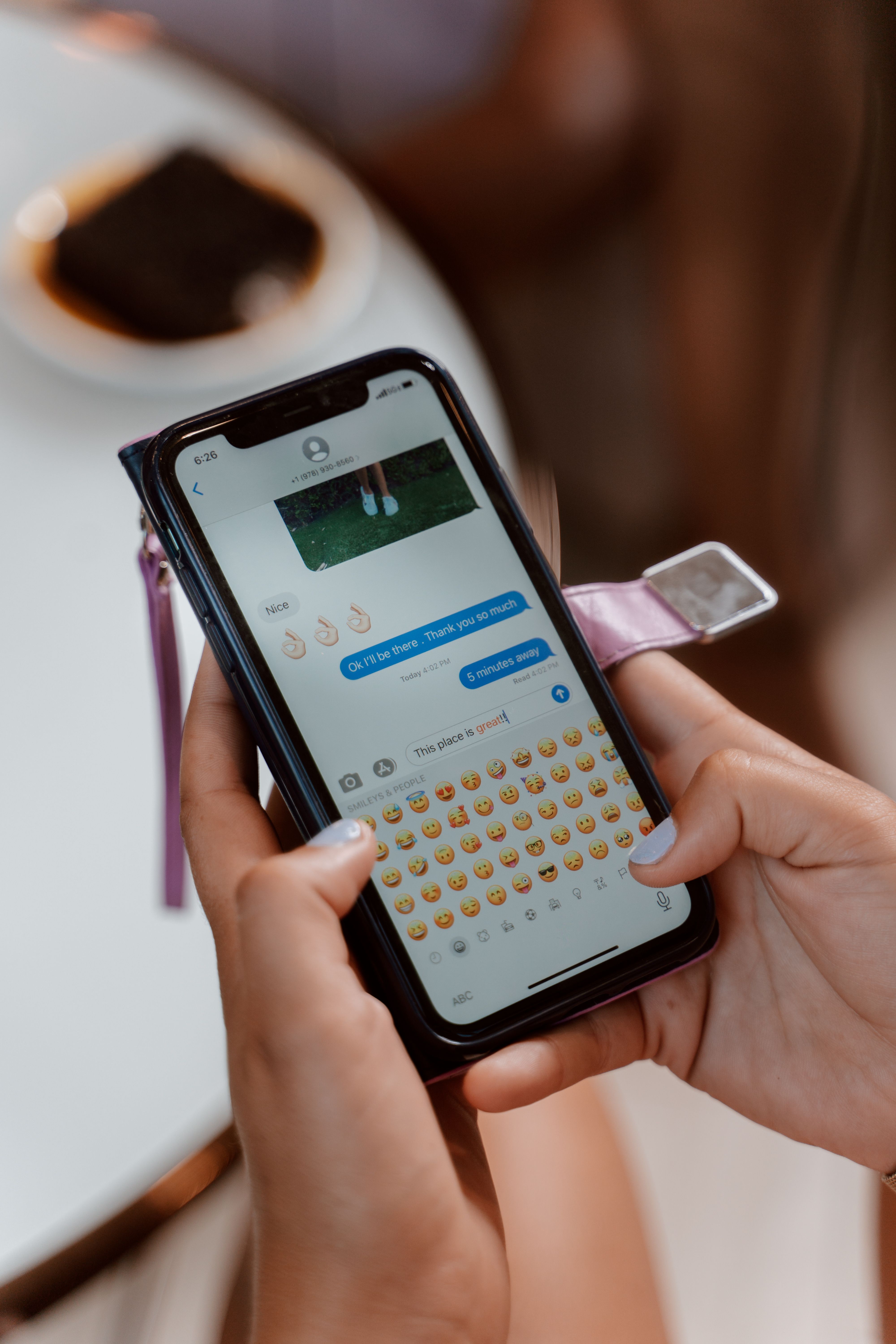
Start with the simplest fix: take a screenshot instead of a photograph whenever you can. A screenshot is pixel perfect by definition, with no glare, no tilt and no blur. If the text is on your screen, screenshot it. Zoom the page to 125 or 150 percent first if the text is small, then screenshot, and the letters will be bigger and clearer. On a phone, the same rule applies: screenshot the message, the post or the page rather than photographing the screen, because a photo of a screen always carries glare and moire patterns that confuse OCR.
If you have to photograph paper, get close and fill the frame with the text. Hold the phone steady, or rest it on a book, and take the photo in good light, ideally daylight or a bright room, with the light falling evenly across the page. Shadows across half the page are worse than dim light overall, because the OCR has to cope with two different brightness levels at once. Keep the phone square to the page rather than at an angle, because perspective distortion makes the letters on one side smaller than the letters on the other, and the model reads the small side badly.
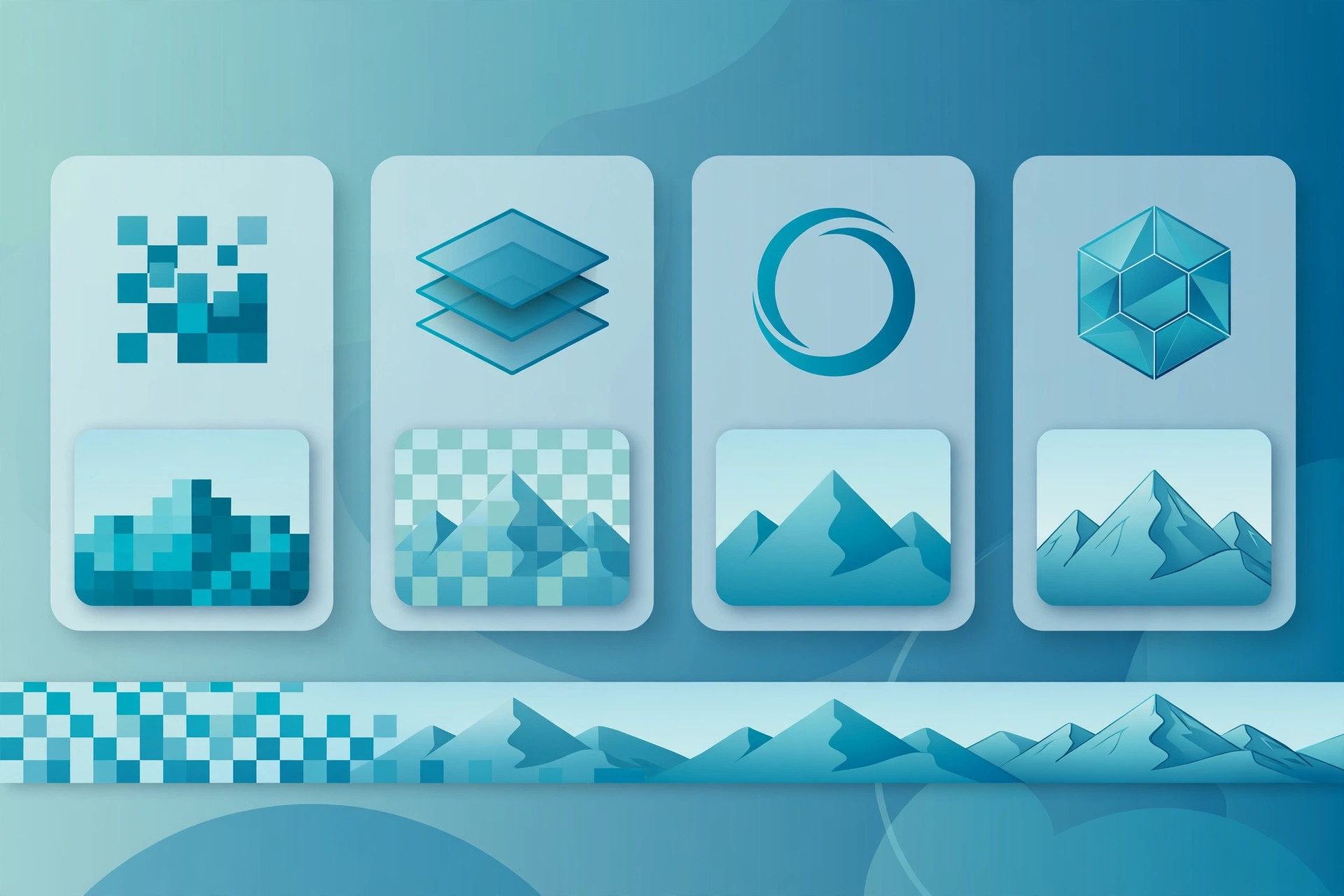
Then crop. Crop out the desk, the background, the edges of the page and anything that is not text. A tight crop does two things: it makes the text bigger relative to the image, which helps the OCR, and it removes distractions that the model might try to read as letters. If the page has a photo or a logo on it, crop that out too if you can, or at least crop to the section you actually need. If the image is small and blurry and you cannot retake it, the Image Upscaler can enlarge it first, and the upscale guide walks through that step. And if the image has a busy background behind the text, like white letters on a photograph, the Background Remover can sometimes clean it up, though plain, high-contrast text will always read best.
Fixing the mistakes OCR makes
Even on a perfect image, OCR makes the occasional mistake, and knowing the usual suspects makes proofreading fast. The most common errors are lookalike characters: the number 1 read as a lowercase letter l, the number 0 read as a capital letter O, the letters rn read as the letter m, and a comma read as a full stop. These are the errors to hunt for first, because they are the ones that change meaning. A price of 100 read as 1OO is easy to miss if you are skimming, and a phone number with a letter in it will fail when you dial it.
The fix is a quick read of the result against the image, with your eyes on the numbers, names and dates. Words are easy to spot when they are wrong, because a misspelt word jumps out. Numbers do not jump out, because 100 and 1OO look equally plausible at a glance. So check the numbers first, then the names, then the dates, and then give the rest a normal read. For a short extract, that takes thirty seconds. For a long document, read it once through and fix what you find, then read it once more, because a second pass always catches something the first one missed.
If a whole section comes back garbled, do not try to fix it word by word. Go back to the image. The usual cause is a blurry patch, a shadow, a fold in the paper or a line of text that is much smaller than the rest. Crop to that section, enlarge it, and run it again on its own. A second pass on a clean crop almost always beats an hour of manual correction, and it is the fastest route to a clean result.
A quick break, and what else lives on WebTaskTools
Once the text is out and pasted where it belongs, the tedious job is done, and you have earned a minute of something more fun. It is a small thing, but a short break between boring jobs makes the next one easier.
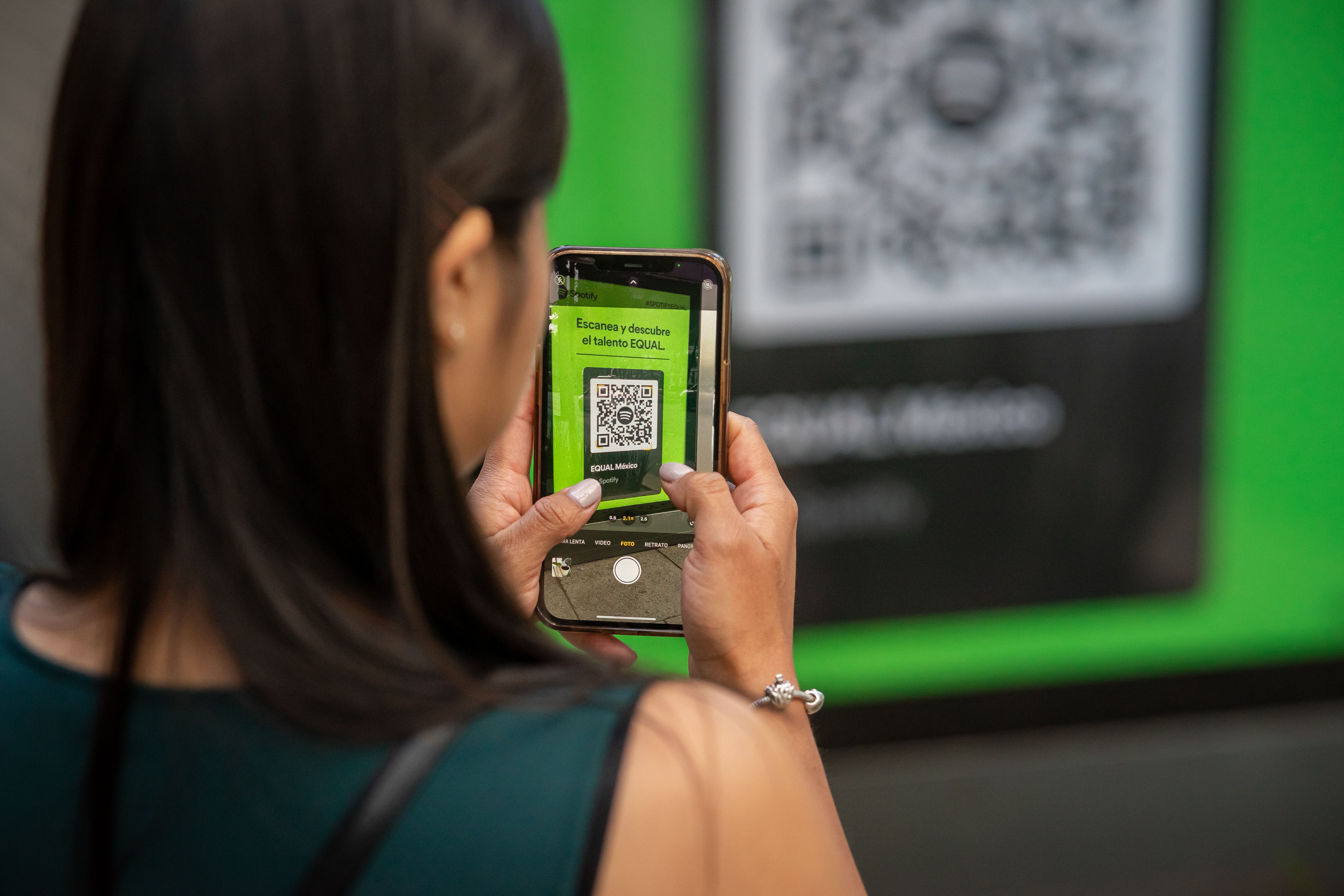
The same idea works the other way round too. If you screenshot a funny quote from a game, a score table or a puzzle clue, the text extractor will pull the words out of the image so you can share them as text instead of retyping them. And while you are here, the rest of the image toolbox is worth knowing about. The Image Compressor will shrink a photo before you upload it anywhere, the Image Upscaler will enlarge a small image before OCR, and the Background Remover will cut a subject out of its background. For the full picture of what the image tools can do, the free online image tools guide covers the whole set in one place, and if you ever need to read a QR code rather than make one, the QR Code Reader will tell you what is inside it before your phone opens it.
Frequently asked questions
How accurate is the OCR?
Very good on clear screenshots and printed text, typically 95 percent or better on crisp images. Blurry, tilted or very small text reduces accuracy. For best results, use a sharp, straight-on screenshot, crop to the text you need, and enlarge small text before you capture it.
Does it work with handwriting?
No. Tesseract reads printed text well but struggles with handwriting. Neat, clear handwriting may partially work, but do not count on it. For handwritten notes, retyping is faster and more accurate than correcting a garbled OCR result.
Which languages are supported?
English, Urdu, Arabic, Hindi, Spanish and French. Pick the language before extracting, because matching the language gives the best accuracy. A page read with the wrong language model will come back as guesswork, while the right model will read it properly.
Is there a file size limit?
Large images are fine, because the tool loads them into memory locally. Very large photos, 10 megabytes or more, may take a little longer on slower phones. If a huge photo is slow, crop it to the text you need or compress it first, and it will run faster.
Can I extract text from a PDF?
This tool works on image files. For a PDF, take a screenshot of the page first, or convert it to an image, then upload it here. Open the PDF, zoom in until the text is large and sharp, screenshot the page, and upload that image.