
Learn how to scan a QR code online free with WebTaskTools. Upload a screenshot or photo, read the link before you open it, and copy the result in seconds.
If you need to scan a QR code online, you probably have a picture of one and no easy way to read it. Maybe someone sent you a screenshot of a code in a chat, or you saved a photo of a restaurant menu, or a poster caught your eye and you photographed it to deal with later. Your phone can scan a code it sees through its camera, but a code that only exists as an image file is a different problem. That is exactly what the free QR Code Reader on WebTaskTools is for. You upload the image, the tool reads the code, and the decoded content appears on your screen in seconds.
There is nothing to install, no app to download, and no account to create. The whole job happens in your browser, and your image is processed instantly and never stored. This guide walks you through the process step by step, explains what QR codes can actually contain, and, most importantly, shows you how to check a decoded link before you open it. Because a QR code is just encoded data, and encoded data can point anywhere, including places you would not want to go. Reading the link before you visit it is the whole point of using a reader like this one, and it is a habit worth building.
What it means to scan a QR code online
A QR code reader decodes the information stored inside a QR code: those square grids of black and white modules you see on posters, packaging, restaurant tables, and payment terminals. When you scan a QR code online, you upload an image containing a code, a screenshot, a photo, or a scanned document, and the reader extracts the encoded payload. Usually that payload is a URL, but it can also be Wi-Fi credentials, contact details, plain text, an email address, or payment information.
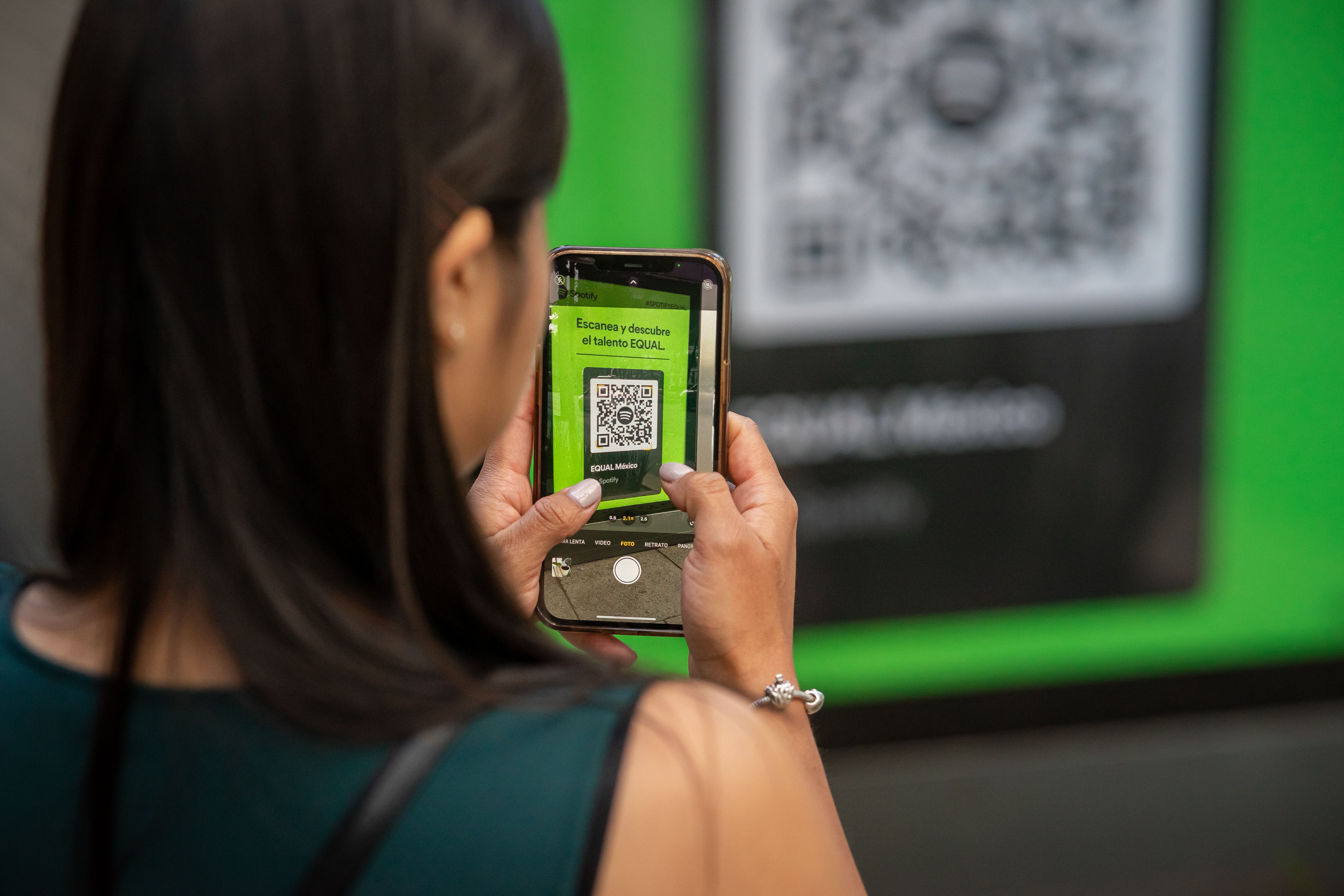
The difference between scanning with your phone camera and scanning online is simple. Your phone reads a code it can see in the real world. An online reader reads a code that only exists as a picture. The two solve different problems, and most people need both at different times. The code on a shop window is a phone job. The code in a screenshot someone sent you is an online reader job, because your phone cannot point its camera at its own screen.
QR codes were invented in 1994 by Denso Wave, a Toyota subsidiary, to track automotive parts. The "QR" stands for Quick Response, reflecting the design goal of fast machine readability. The format stores data in a two-dimensional grid with built-in error correction, which means a code remains scannable even when up to 30 percent of it is damaged or obscured. That robustness, plus the smartphone camera revolution, took QR from factory floors to everywhere. A menu, ticket, or business card without one looks behind the times now.
Step by step: scan a QR code online in five steps
Here is the whole process, start to finish, using the free QR Code Reader tool. There is nothing to install and no account to create, and the five steps below are all there is to it.
- Upload the image. Click upload, or drag and drop, and select the photo, screenshot, or scan containing the QR code. PNG, JPG, and other common formats work, so you do not need to convert anything first. If the code is inside a larger image, like a full screenshot of a chat, that is fine. The reader looks for the code inside the picture.
- Wait for decoding. The reader locates the code's finder patterns, the three big squares in the corners, and decodes the modules instantly. This takes a second or two at most. You do not need to crop the image, rotate it, or do anything clever first. Just upload it and let the tool find the code.
- Read the decoded content. The extracted text, URL, or data appears on the page. This is the important step, and it is the one people rush past. Read what the code actually says before you do anything with it. If it is a link, read the full address. If it is text, read the text. If it is Wi-Fi credentials or contact details, check that they look like what you expected.
- Verify URLs carefully. Before you visit any decoded link, check the domain for misspellings, like g00gle.com instead of google.com, suspicious subdomains, like login.bank.com.evil.com, and unexpected URL shorteners hiding the destination. A reader that shows you the decoded URL before you visit it is actually a security tool, and this step is where it earns its keep.
- Copy what you need, then decide whether to visit. Copy the decoded text, link, or credentials for your records or to paste elsewhere. Only open the URL if the domain is one you recognise and trust. When in doubt, do not open it. A link you do not open cannot hurt you, and there is no prize for clicking quickly.
That is the whole process. Five steps, about thirty seconds, and the code that was sitting unread in your screenshots is now something you can actually use.
What QR codes can contain
Most people think a QR code is just a link, but the format can hold much more than that. Knowing what to expect helps you recognise when a decoded result looks wrong, which is one of the best defences against a malicious code. Here are the main payload types, with an example of each and what normally happens when you scan one.
A URL is the most common payload by far. The code holds a web address, and scanning it opens the web page. Restaurant menus, event tickets, posters, and product packaging almost always use this type. If the URL looks long, odd, or full of random characters, that is not automatically suspicious, because tracking links are often long, but it is a reason to look twice.
Wi-Fi credentials are the second most useful type. The code holds the network name, the password, and the security type, and scanning it offers to join the network. Cafes, hotels, and offices use these so guests do not have to type a long password. The decoded text usually looks like WIFI:T:WPA;S:CafeNet;P:secret123, and you can read the network name right there in the payload.
Contact details, usually in vCard format, hold a name, phone number, and email address, and scanning one offers to save the contact. Business cards use this type, and it is genuinely useful, because it moves a name from a piece of card into your phone without any typing.
Plain text is the simplest payload. The code holds a short message, and scanning it just displays the text. Museums use this for exhibit notes, and some products use it for short instructions. There is nothing to click and nothing to open, so it is the safest payload type of all.
Email, SMS, and phone payloads each open the matching app with something prefilled. An email code opens a compose window to a set address. An SMS code opens messaging with a number and a message already filled in. A phone code offers to place a call. These are all convenient, but they are also the types to check carefully, because a prefilled message you did not expect is a sign the code is not what it claims to be.
Payment and geolocation codes round out the list. A payment code opens your payment app with the details prefilled, which is how many QR payment systems work. A geolocation code opens the location in maps. Both are useful, and both deserve the same check as a URL: does the decoded content match what you were expecting to find?
The safety part: read before you trust
This is the most important section in this guide, and it is the reason an online QR reader is worth using instead of just pointing your phone at a code and hoping for the best. A QR code is just encoded data, not a trusted action. Scanning one is equivalent to clicking a link someone handed you, and the URL inside could lead anywhere.
Malicious QR codes, sometimes called "quishing", appear on fake parking meters, phishing flyers, and tampered restaurant stickers. Someone sticks their own code over a genuine one, and the next person to scan it lands on a credential harvesting site that looks exactly like the real thing. The trick works because a QR code hides its destination. You cannot see where it leads until you scan it, and by then your browser is already on its way.
That is why a reader that shows you the decoded URL before you visit it is a security tool, not just a convenience. It breaks the hiding. You get to inspect the destination, checking the domain, looking for misspellings and suspicious subdomains, before your browser ever goes there. The WebTaskTools reader does exactly that: it shows you what the code contains, and then the decision is yours.
Here is a short checklist to run through every time a code decodes to a link. First, read the domain itself, the part between the "://" and the next slash. Is it the domain you expected? A code on a restaurant table should lead to the restaurant's site, not to a random domain you have never heard of. Second, look for misspellings. Attackers register domains that look almost right, like g00gle.com with zeroes instead of the letter o, or a well known brand with one letter swapped. Third, look at the subdomains. A real bank link reads bank.com, while a fake one might read login.bank.com.evil.com, where the real domain is evil.com and "bank.com" is just part of the subdomain. Fourth, be wary of URL shorteners hiding the destination. A shortened link tells you nothing about where it leads, so if the code decodes to a shortener, treat it with the same caution as any unknown link.
None of this means you should be afraid of QR codes. They are enormously useful, and the overwhelming majority of them are exactly what they claim to be. But the five second check above is free, and it is the difference between using QR codes safely and using them blindly. Never scan and trust blindly, especially on codes you found in public places, where anyone could have stuck a new code over the old one.
When the reader cannot decode your code
Sometimes you upload an image and nothing comes back. That is frustrating, but it is usually fixable, and the reason is almost always one of a small handful of problems.
The most common reason is a blurry or low resolution photo. The reader needs to see the individual modules, the small black and white squares, clearly enough to tell them apart. If the photo was taken in bad light, or from too far away, or the camera moved while you took it, the modules blur together and the code cannot be read. Take the photo again, closer up, with the code filling as much of the frame as you can, and hold the phone still. A sharp photo of a code decodes instantly.
The second common reason is damage. The format has error correction built in, and a code remains scannable even when up to 30 percent of it is damaged or obscured, but 30 percent is a limit, not a guarantee. A code that is torn, heavily scratched, or partly covered by a sticker may simply have lost too much data. If part of the code is covered, uncover it if you can. If the code is printed on a crumpled receipt, flatten the receipt and try again.
The third reason is contrast. A code printed in light grey on white, or in colours that are too close together, can be hard to read even when it is perfectly sharp. QR codes work best in dark modules on a light background. If you are designing codes yourself, keep them high contrast, and if you are trying to read a low contrast code, try increasing the contrast of the photo in any basic photo editor before you upload it.
The fourth reason is that the image does not actually contain a QR code at all. This sounds obvious, but it happens more than you would think, usually with barcodes. A traditional one dimensional barcode, the striped kind on products, is not a QR code, and a QR reader will not decode it. If your image shows stripes rather than squares, you need a barcode reader, not a QR reader.
And finally, check the file itself. The reader accepts PNG, JPG, and other common formats, but a corrupted file, or a file that is actually a different format with the wrong extension, will not decode. If one file fails, try re-saving it or taking a fresh screenshot, and then upload the new copy.
QR codes in everyday life
Once you start noticing QR codes, you realise how much of daily life runs through them now. Restaurant tables carry them instead of printed menus, because a menu can be updated without reprinting anything. Event tickets carry them, because a code is harder to fake than a paper stub and faster to check at the door. Payment terminals carry them, because scanning is quicker than typing card details. Business cards carry them, because a code can move a whole contact into a phone in one tap.
This is also why the reader matters as a tool, not just a curiosity. The codes are not going away, and the pictures of codes are piling up in everyone's camera roll and chat history. A screenshot of a menu, a photo of a poster, a forwarded image of a ticket: these are all codes waiting to be read, and an online reader is the fastest way to read them. You do not need to print the screenshot, you do not need to hold one phone up to another phone's screen, and you do not need to install an app that wants access to your camera roll. You just upload the image and read the result.
It is also worth knowing that the same site can make codes as well as read them. If you need to create a code rather than read one, the free QR Code Generator on WebTaskTools does the other half of the job. The two tools are a natural pair: generate a code when you need to share a link, read a code when someone shares one with you. The guide How to Create a QR Code Online Free walks through the generator step by step, and QR Codes Explained covers the history and the format in more depth if you are curious. If you are comparing options, Best Free QR Code Generators Compared and Free QR Code Generator Online are both worth a read.
A quick break, then back to work
Tools like the QR Code Reader are the kind of thing you use for thirty seconds and then forget about until you need it again, and that is exactly how it should be.
Then, when the next QR code lands in your screenshots, you know what to do. Upload it, read what it says, check the link, and only then decide whether to open it. Thirty seconds of care, and the code does exactly what it was supposed to do.
Frequently asked questions
How do I scan a QR code online for free?
Open the free QR Code Reader on WebTaskTools at https://webtasktools.com/qr-code-reader/, upload the image containing the code, and read the decoded content that appears. There is nothing to install and no account to create, and your image is processed instantly and never stored. PNG, JPG, and other common formats all work.
Can I scan a QR code from a screenshot?
Yes, screenshots work well with an online reader. Take a screenshot that includes the whole code, upload it to the reader, and the tool will find the code inside the image and decode it. Make sure the code is sharp and fills a reasonable part of the image. A blurry or tiny code in a large screenshot may not decode, so crop closer to the code if the first try fails.
Is it safe to scan a QR code online?
Scanning a code with an online reader is safe in itself, because the reader only decodes the data and shows it to you. It does not visit the link or open anything. The risk comes afterwards, if you open a decoded link without checking it. Always read the domain first, watch for misspellings and suspicious subdomains, and only open the link if the domain is one you recognise and trust.
What can a QR code contain?
A QR code can contain a URL, Wi-Fi credentials, contact details in vCard format, plain text, an email address, an SMS message, a phone number, payment information, or a geolocation. A URL is the most common payload, but the reader will show you whatever the code actually holds, so you can see the type before you act on it.
What should I do if the QR code will not scan?
First, check the photo is sharp and the code fills enough of the frame, then try again with a closer, steadier photo. Flatten the code if it is crumpled, uncover it if part of it is hidden, and remember that a code remains readable even when up to 30 percent of it is damaged, but not beyond that. If the image shows stripes rather than squares, it is a barcode, not a QR code, and it needs a barcode reader instead.