Compare the best free PDF compressors: iLovePDF vs Smallpdf vs WebTaskTools. Shrink PDFs online free with no signup and no watermark (2026).
Everyone has been there: a PDF that needs emailing, uploading or submitting, and it is 47 MB when the limit is 10. The best free PDF compressor fixes this in under a minute — shrinking the file dramatically while keeping it perfectly readable. But not all free compressors are equal: some cap your daily usage, some demand an account, and some quietly add watermarks.
This guide compares the three names you will encounter most — iLovePDF, Smallpdf and WebTaskTools — on the criteria that matter for a free PDF compressor online: cost, limits, quality options, ease of use and privacy. No sponsored rankings, no invented scores — just an honest breakdown so you can pick the right tool for your file.
Why PDFs get so big in the first place
A PDF is a container, and its size depends entirely on what is inside it. Text compresses beautifully — a hundred pages of pure text is often under 1 MB. The bloat almost always comes from images: scanned pages saved as full-resolution photos, embedded charts exported at print resolution, or phone-camera "scans" at 12 megapixels. Embedded fonts, layered graphics and uncompressed image streams add to the pile.
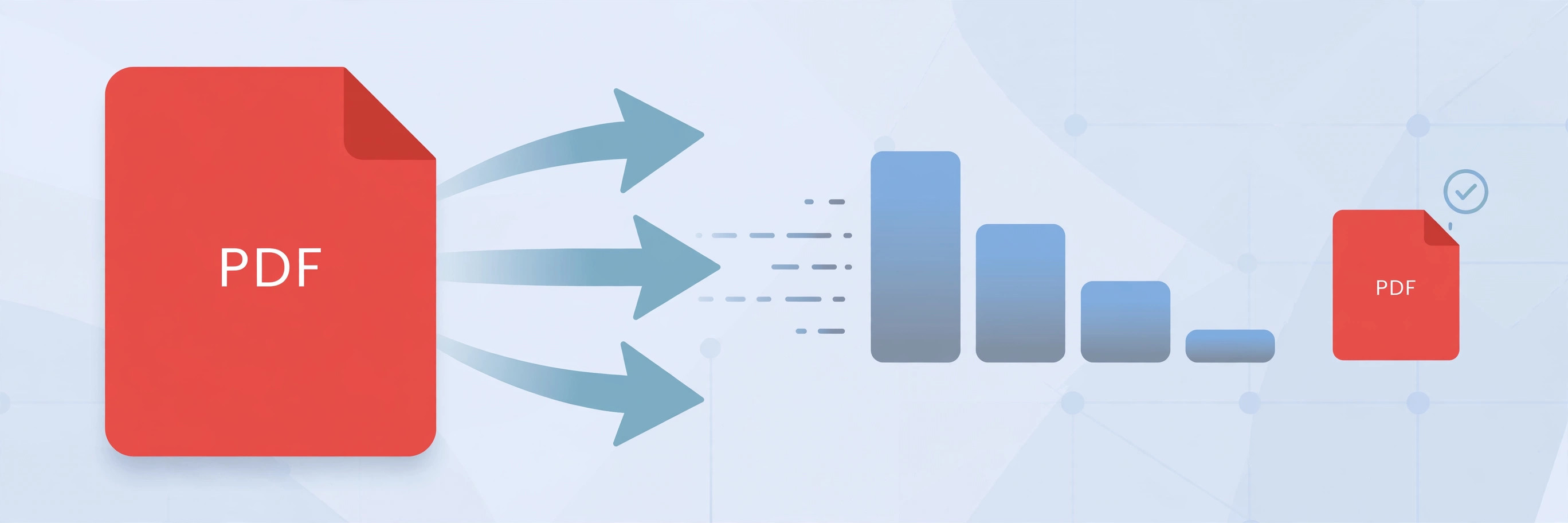
This is actually good news, because it means most PDFs can shrink enormously without any visible change. A scanned document whose images are downsampled from 600 dpi to 150 dpi typically loses 70–90% of its file size while remaining perfectly readable on screen. Understanding this helps you compress a PDF without losing quality: the trick is targeting the images, not the text — and choosing a compression level matched to what the file is for.
What to look for in a free PDF compressor
Before comparing names, here is the checklist that separates a genuinely useful free tool from a frustrating one:
- Actually free for your use case. Many "free" compressors are freemium: a couple of free tasks per day, then a paywall. If you compress PDFs regularly, daily caps matter more than anything.
- No signup required. Creating an account to shrink one file is a red flag for upselling, not a technical necessity.
- No watermark on output. Some free tiers stamp their branding on your document. For anything professional, that is a dealbreaker.
- Compression level choice. One-click compression is fine, but the best tools let you choose between maximum shrink and maximum quality.
- Quality preservation. Text should stay razor-sharp and images acceptably crisp. Good tools downsample images intelligently rather than crushing everything.
- Privacy handling. You are uploading potentially sensitive documents. Look for encrypted transfer and automatic file deletion.
iLovePDF: the feature-packed veteran
iLovePDF, from Barcelona, is one of the oldest and most complete PDF platforms on the web. Its compressor offers three compression levels — extreme, recommended and less compression — which is exactly the kind of control the checklist above asks for. "Recommended" hits the sweet spot for most files; "extreme" is there when you need the smallest possible file and can tolerate softer images.
The free tier lets you compress PDFs without paying, but it is a freemium model: free users face limits on tasks, and heavier users are steered toward Premium plans. Where iLovePDF genuinely shines is breadth — merge, split, convert, protect, sign and OCR tools live alongside the compressor, with desktop and mobile apps for offline work. If you want one PDF account that does everything and you compress often enough to consider paying, iLovePDF is the most fully-featured option of the three.
The trade-offs: the free tier's limits can interrupt you mid-workflow, the upsell prompts are persistent, and you will eventually need an account for regular use. As a pure "shrink this one file right now" experience, it is heavier than it needs to be.
Smallpdf: the polished all-rounder
Smallpdf, the Swiss platform from Zurich, built its reputation on design: every tool feels simple, fast and considered. Its compressor is genuinely strong — upload a file, choose between basic (free) and strong compression, and download a dramatically smaller PDF seconds later. In the classic ilovepdf vs smallpdf debate, Smallpdf usually wins on ease of use while iLovePDF wins on raw feature count.
The catch is the free tier, which has historically been the strictest of the three: free users get only a small number of tasks per day (limits change over time, so check the current terms on their site). Hit the cap and you are waiting until tomorrow or reaching for your wallet — Smallpdf's Pro plans are also priced above iLovePDF's. Like iLovePDF it offers e-signing, conversions and a desktop app, making it a fine choice if you value polish and are willing to pay for unlimited use.
For the occasional user who just needs one file shrunk beautifully, Smallpdf's free tasks are enough. For anyone compressing PDFs weekly, the daily cap becomes the whole story.
WebTaskTools: the no-signup free option
WebTaskTools takes the opposite approach: a free PDF compressor with no signup, no watermark on your output, and no account standing between you and your file. Open the compress PDF tool, drop in your file, and download the smaller version — the whole interaction takes under a minute.
The philosophy here is that compressing a PDF is a utility, not a relationship: you should not need an account, a trial, or a pricing page to shrink a file. The tool runs in your browser, transfers are encrypted, and there is no branding stamped onto your document. It will not replace a full PDF suite — there is no OCR, no e-signing workflow, no desktop app — but for the specific job of "make this PDF smaller, right now, for free", that focus is the point.
Where WebTaskTools honestly wins: zero friction. No daily task counter, no signup wall, no watermark — the three annoyances that define the freemium experience elsewhere. Where it does not win: if you need advanced features like OCR on scanned documents or batch processing dozens of files with custom profiles, the bigger suites justify their existence.
Head-to-head: the free PDF tools comparison
- Free tier: iLovePDF offers free compression with task limits; Smallpdf offers free compression with stricter daily limits; WebTaskTools is free with no signup and no task counter.
- Watermark on free output: none of the three watermarks compressed files — your PDF comes back clean.
- Compression levels: iLovePDF gives three (extreme / recommended / less); Smallpdf gives two (basic / strong); WebTaskTools uses an optimised default that balances size and quality.
- Account required: iLovePDF and Smallpdf both want an account for regular use; WebTaskTools never asks for one.
- Extra PDF tools: iLovePDF has the largest suite plus desktop and mobile apps; Smallpdf has a large suite plus apps; WebTaskTools keeps a focused set of browser tools.
The short version: iLovePDF offers the most control and the most tools, Smallpdf offers the most polish with the tightest free limits, and WebTaskTools offers the least friction.
Which free PDF compressor should you choose?
- You compress PDFs occasionally and want it effortless: WebTaskTools. No account, no counter, no watermark — shrink the file and move on with your day.
- You want compression-level control and a full PDF toolkit: iLovePDF. The three compression levels and the huge tool suite suit regular PDF workers; accept the freemium limits or the Premium upsell.
- You value beautiful UX and compress rarely: Smallpdf. Lovely to use, strong results — just know the free daily cap is the strictest here.
- You need to email a PDF right now: any of the three will do it, but the no-signup option gets you from problem to sent email fastest. For more on fitting attachments under limits, see the tips below.
How to compress a PDF online in 30 seconds
- Open a free PDF compressor online — for example the WebTaskTools compress PDF tool (no signup needed).
- Drag your PDF into the upload area or click to browse for it.
- Wait a few seconds while the tool downsamples oversized images and strips bloat.
- Download the compressed file and check it opens correctly.
- If it is still too big, compress once more or pick a stronger setting — but check quality after each pass.
If your workflow involves assembling documents from parts, compress each part first, then combine them with a merge PDF tool — merging uncompressed scans and compressing afterwards works too, but compressing first gives you predictable final sizes.
How to compress a PDF without losing quality
- Match the compression to the destination. Screen-only reading (email, upload portals) tolerates aggressive compression; printing needs a lighter touch. Never use "extreme" on something you will print.
- Downsample, don't destroy. Good compression reduces image resolution to what the use case needs (around 150 dpi for screen). Text stays vector-sharp regardless — only images are affected.
- Avoid double compression. Compressing an already-compressed PDF again yields tiny savings and visible artefacts. Compress once, at the right level.
- Check the result before sending. Zoom to 100–150% and skim image-heavy pages. If charts or small text in images look soft, redo with lighter compression.
- Shrink the source when you can. A phone scan at full camera resolution is the classic avoidable bloat — scanning at a moderate resolution beats compressing a giant file afterwards.
- Remove what you don't need. Some PDFs carry embedded fonts for languages you don't use, or hidden layers. A good compressor strips this dead weight automatically.
Frequently asked questions
Is there really a free PDF compressor with no signup? Yes. A PDF compressor does not technically need an account — the freemium suites ask for one to manage their free-tier limits and upsells. Tools like WebTaskTools compress entirely without signup: upload, compress, download. If a site demands your email before showing you a single result, that is a marketing choice, not a technical requirement.
Will compressing a PDF reduce its quality? It depends on the settings. Text is unaffected by normal compression — it stays perfectly sharp. Images are downsampled, which is where quality can visibly drop if you overdo it. Using a "recommended" level for screen use gives you a dramatically smaller file with no perceptible difference; only maximum compression on image-heavy documents shows softening. Always preview before sending anything important.
iLovePDF vs Smallpdf: which is better for compression? Both compress well. iLovePDF gives you three compression levels and a bigger surrounding toolset, which suits power users. Smallpdf has the cleaner interface and slightly simpler choices, which suits occasional users. The practical difference for most people is the free tier: iLovePDF's free usage is more generous day-to-day, while Smallpdf caps free tasks more strictly. For pure compression quality on a single file, it is essentially a tie.
What is the best PDF compressor for email attachments? The one that gets you under the attachment limit fastest. Gmail and most providers cap attachments around 25 MB; corporate inboxes are often stricter (10 MB is common). Any of the three tools here will take a typical oversized PDF under those limits. If you are fighting a deadline, pick the no-signup option — every extra click is time you don't have.
Do free PDF compressors add watermarks? The reputable ones do not — iLovePDF, Smallpdf and WebTaskTools all return clean, unbranded PDFs from their free compression. Watermarks are more common on free PDF *editors* and converters than on compressors. If a compressor stamps its logo on your file, find another one; plenty of good options don't.
Is it safe to upload my PDF to an online compressor? For ordinary documents, yes — established tools use encrypted (HTTPS) transfers and auto-delete uploaded files after a short period. For highly sensitive material (legal, medical, financial), check the tool's privacy policy for explicit deletion timeframes, or use a desktop tool so the file never leaves your machine. As a rule, never upload anything you wouldn't email.
The bottom line
The best free PDF compressor depends on what you value. iLovePDF is the most capable free suite — three compression levels and dozens of tools, with freemium limits as the price. Smallpdf is the most polished experience, with the strictest free daily cap. WebTaskTools is the fastest path from problem to solved: a genuinely free PDF compressor online with no signup and no watermark, built for the job most people actually have — shrink this file, right now.
If your need is occasional and urgent, skip the accounts and the counters: compress your PDF free and get on with your day. If you live inside PDFs all week, the bigger suites earn their keep. Either way, you now know exactly what you are trading off — and that is the whole point of a comparison.