Explore how free online web tools, code compressors, image editors, and text utilities can streamline your daily work, save storage, and boost efficiency.
The Ultimate Guide to Free Online Web Tools: How to Supercharge Your Daily Workflow in 2026
In the modern digital era, speed and efficiency are everything. Whether you are building websites, managing social media, writing content, or organizing data, your daily digital workflow dictates your productivity. But how often do you find yourself wasting precious minutes downloading bulky software, searching for installation keys, or updating outdated desktop applications just to perform a single, simple task?
Speed up any page: the free HTML minifier trims markup bloat in one click.
Enter cloud-based utilities and free online web tools.
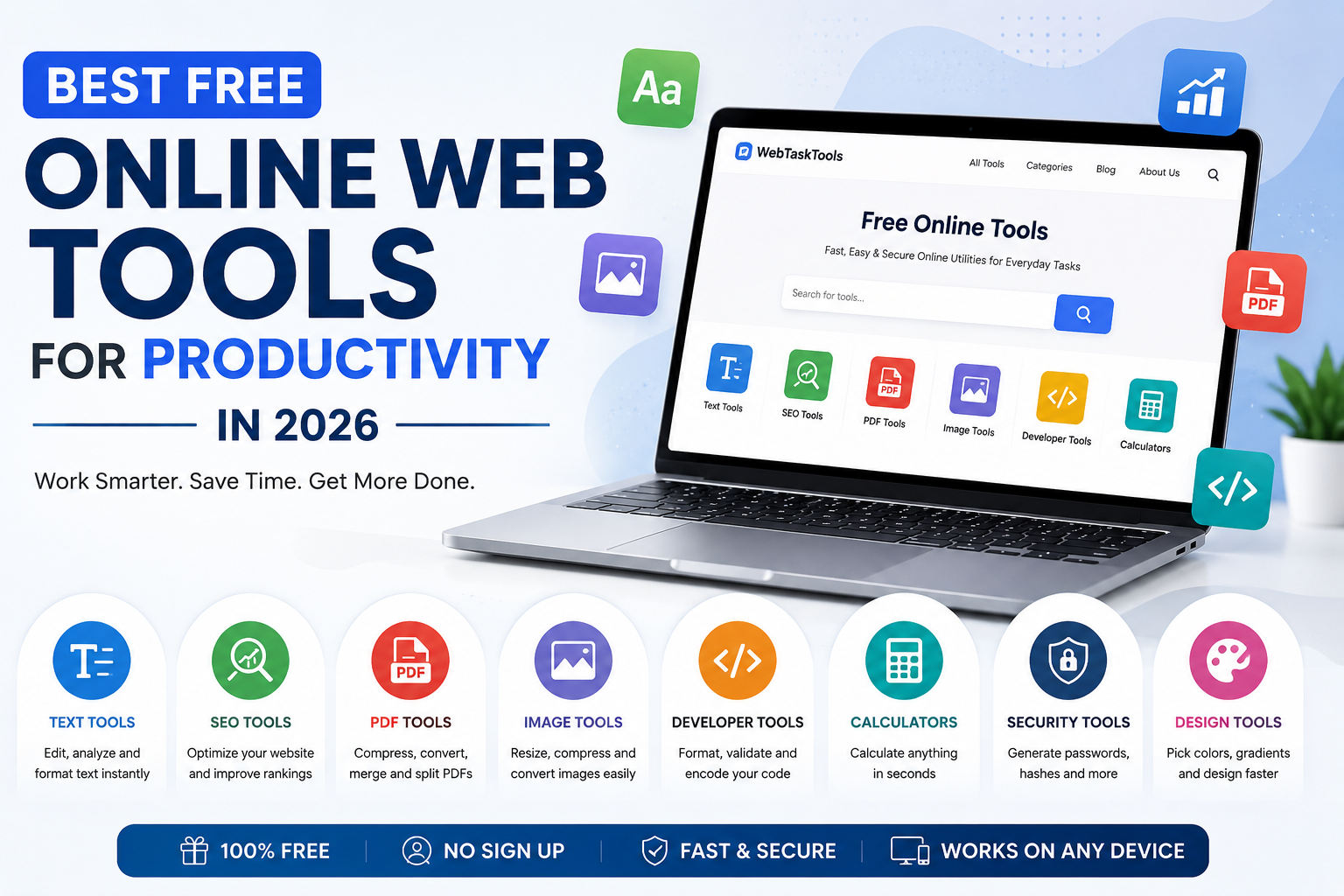
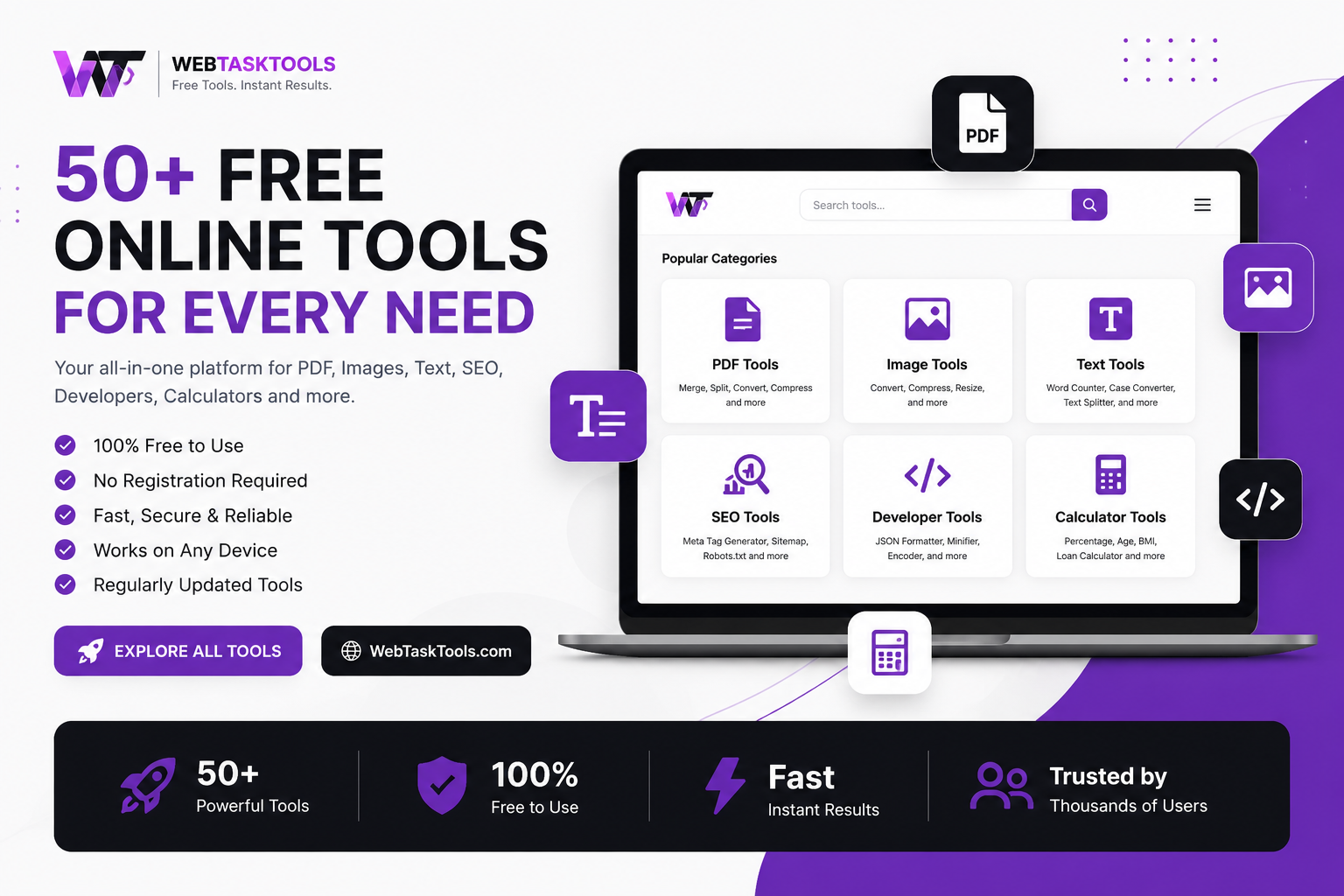
Platforms like WebTaskTools have revolutionized how professionals and everyday internet users handle digital tasks. Instead of cluttering your hard drive with heavyweight programs, you can now access hundreds of specialized utilities directly through your browser.
In this comprehensive guide, we will explore why online web tools are taking over, the different types of tools available, and how you can leverage them to make your daily workflow faster, cleaner, and completely friction-free.
Part 1: Why Desktop Software is Becoming Obsolete
For decades, getting a job done meant installing a dedicated application. Need to edit a photo? Install a massive image suite. Need to convert a document? Buy a license for file conversion software.
However, this traditional approach comes with significant drawbacks:
- Storage Bloat: Heavy applications consume massive amounts of disk space and slow down your computer's performance.
- Compatibility Issues: Software designed for Windows often doesn’t work seamlessly on Mac or Linux without extra emulation layers.
- Constant Updates: Desktop software requires manual patching, security updates, and license renewals.
- Platform Lock-in: You are restricted to working only on the specific computer where the software is installed.
Online web tools eliminate all of these pain points. They run entirely in the cloud via your browser, meaning they are platform-independent, always up-to-date, and available anywhere in the world.
Part 2: Essential Categories of Web Tools That Transform Daily Work
A robust web utility platform covers various niches to cater to different professional needs. Here are the core categories that can instantly upgrade your productivity:
1. Image and Graphic Utilities
Visual content rules the internet, but large image sizes slow down websites, and incorrect formats can ruin designs.
- Image Compressors: Reduce file sizes drastically without losing visual clarity, improving website loading speeds.
- Format Converters: Instantly switch between PNG, JPG, WebP, and SVG formats.
- Resizers & Croppers: Quickly adjust image dimensions for social media platforms, blog banners, or thumbnails.
2. Developer and Coder Utilities
Writing and debugging code requires precision. Developers often need quick formatting tools to ensure their code is clean and error-free.
- JSON/XML Formatters & Validators: Beautify or minify code structures instantly.
- Minifiers: Compress CSS, JavaScript, and HTML files to enhance website performance.
- Hash Generators & Encoders: Generate MD5, SHA-256, Base64, and URL encoding/decoding on the fly without running local scripts.
3. Text and Content Manipulation Tools
Writers, editors, and marketers deal with text formatting daily. Having quick online utilities saves hours of manual editing.
- Word and Character Counters: Essential for SEO meta descriptions, tweets, and academic essays.
- Case Converters: Instantly switch text between uppercase, lowercase, title case, and sentence case.
- Lorem Ipsum Generators: Generate placeholder text quickly for web design mockups.
- Find and Replace / Duplicate Line Removers: Clean up raw data lists in seconds.
4. Security and Utility Tools
In a digital world driven by data, security and minor utility calculations are constant necessities.
- Password Generators: Create strong, uncrackable, randomized passwords with custom symbols and numbers.
- Color Pickers & Converters: Translate HEX, RGB, and HSL color codes effortlessly for web designers.
- Unit and Timestamp Converters: Convert epoch timestamps to readable dates or switch between measurement units instantly.
Part 3: Best Practices for Maximizing Your Productivity with Web Tools
To truly benefit from online utilities, you need a smart approach to how you use them:
- Bookmark Your Favorites: Keep a dedicated folder in your browser bookmarks for the tools you use most frequently (like WebTaskTools). This cuts down search time to a single click.
- Understand Data Privacy: For sensitive personal documents or private enterprise code, always ensure the platform handles data securely within your browser environment rather than storing sensitive logs on external servers.
- Combine Tools for Automated Workflows: Learn to chain tools together—for example, compressing an image, generating a secure sharing link, and formatting accompanying text—to execute multi-step projects in under a minute.
Conclusion: Work Smarter, Not Harder
The secret to modern success is not working longer hours; it is eliminating the friction that slows you down. By swapping clunky desktop software for fast, responsive, and free browser-based web tools, you free up mental energy, save storage space, and streamline your entire digital day.
Stop wasting time on repetitive technical hurdles. Visit WebTaskTools, explore the comprehensive collection of utilities designed for your everyday needs, and take total control of your productivity today!
The Complete Toolkit, Category by Category
Text: counting, converting case, deduplicating, alphabetizing, generating slugs and placeholder text — the unglamorous work that underpins all writing.
Images: compressing, resizing, converting formats, removing backgrounds — because images are the heaviest part of the web and the most neglected.
PDF: merging, splitting, compressing, converting to and from images — document assembly without desktop software.
Developer: validating JSON, minifying code, encoding Base64 and URLs, generating hashes and UUIDs — the browser as a workbench.
SEO & safety: checking meta tags, keyword density, DNS, hosting, SSL, and URL safety — seeing what is behind any website.
Generators: passwords, QR codes, random data, converters — creating correctly-formatted assets on demand.
Designing Your Personal Workflow
The guide-level advice from shorter articles applies doubly here: organize by frequency (daily five, weekly ten, occasional rest), build checklists for recurring jobs (publishing, invoicing, deploying), and standardize across teams. The "complete guide" difference is scope — this is the article you send a new hire, a student starting term, or a friend asking "what are those tools you always use?" It is the map, not just the territory.
Role Playbooks
The student: character counter for essays, merge PDF for submissions, image compressor for presentations, QR codes for group projects.
The freelancer: everything above plus password generator for client accounts, slug generator for articles, meta checkers for client sites, invoice PDFs merged monthly.
The developer: JSON validator pinned during API work, minifiers before deploy, encoders for URLs and tokens, DNS/SSL checks for infrastructure.
The marketer: keyword density and meta checkers per article, QR codes per campaign, UTM links per channel, compressed images per page.
The educator: QR codes linking worksheets to resources, compressed images for slides, merged PDFs for handouts.
The Publishing Checklist (Copy This)
- Draft complete and proofread — ideally listened to via text-to-speech for ear-catching errors.
- Length checked against any limits (character counter).
- Slug generated, short and descriptive.
- Meta title and description written, length-checked, honest.
- Headings structured: one H1, logical H2/H3 flow.
- Images: right format, resized, compressed, with alt text.
- Internal links to related content added.
- Keyword density sanity-checked after writing (not during).
- Page tested on a real phone before publishing.
The Admin Hour: Batching Small Tasks
scattered micro-tasks expand to fill the day; batched, they take an hour. Once a week, run the admin batch: merge the week’s PDFs, generate needed passwords and QR codes, compress accumulated images, run SEO checks on new pages. Same tasks, fraction of the time — because batching eliminates the repeated setup cost of each tiny job. Put it on the calendar; "when I get to it" means never.
Troubleshooting Guide
- Tool will not load: allow scripts for the page and hard-refresh; most tools are single-page apps.
- Upload stalls: the file may exceed browser memory — split or compress first, process in parts.
- Output looks wrong: check input settings (dimensions, format, quality) before blaming the tool.
- Download missing: check the browser download bar and popup permissions.
Staying Current
Tools evolve: new utilities appear, old ones add limits, formats change. Quarterly, spend fifteen minutes: prune unused bookmarks, check for new arrivals in the category hubs matching new job types, and verify your core five still behave. The guide stays complete because you maintain it — a living toolkit beats a perfect snapshot.
Frequently Asked Questions
Is everything really free? The utilities in this guide are free for everyday use with no account required.
Where do I start? The starter five: character counter, image compressor, merge PDF, password generator, QR code generator.
Can I use these for client work? Yes — that is what they are for. Professionals use them daily for deliverables.
A complete toolkit is not a long list. It is a short list you know cold, plus a map to everything else.
The 30-Day Adoption Plan
Week 1: bookmark the starter five; use each once on a real task.
Week 2: add the next five for your role; build your first checklist (publishing or admin batch).
Week 3: teach one tool to someone else — teaching locks in the habit.
Week 4: audit: which tools earned their place? Remove the rest. Review quarterly thereafter.
The plan works because it is gradual: five tools, then ten, then habits, then maintenance. Most "productivity systems" fail by demanding everything on day one. This one asks for fifteen minutes a week — and compounds like interest.
Deep Dive Pointers (Where to Learn More)
This guide maps the territory; the companion articles walk each region in depth: the PDF guide covers merging, splitting, and compressing workflows; the image compression guide covers formats and quality settings; the SEO beginner guide covers keyword research through measurement; the password guide covers managers and two-factor authentication; the JSON guide covers validation and debugging flows. Read the map first, then hike the trails that match your work.
For Teams and Classrooms
A shared toolkit multiplies every benefit: agree on one tool per job, document the links in the wiki, onboard newcomers with the list. For teachers, a one-page handout of the student starter set in week one prevents a semester of oversized attachments and corrupted submissions. Free tools mean adoption costs nothing but five minutes of explanation — the cheapest team upgrade available.
The Maintenance Habit
The difference between a toolkit and a junk drawer is maintenance. Quarterly fifteen minutes: prune unused bookmarks, verify the core five still behave well, scan the category hubs for new tools matching new jobs. Put the next review on your calendar now — "someday" is where toolkits go to die, and the review is what keeps this guide complete forever rather than just today.
Anti-Patterns: How Toolkits Die
- The collector: 200 bookmarks, zero habits. Cure: the starter five only, everything else on demand.
- The optimizer: perfecting a twice-yearly workflow instead of doing the work. Cure: optimize by frequency.
- The loyalist: sticking with a tool that added signup walls out of habit. Cure: loyalty to the workflow, not the brand.
- The reinventor: building a spreadsheet to track tools instead of using them. Cure: fifteen-minute setup, then work.
Every anti-pattern has the same root: confusing the toolkit with the work. The toolkit serves the work — the moment it becomes a hobby, prune it back to the starter five and rebuild from real jobs.
Your Next Step
Close this guide and do the fifteen-minute setup: five bookmarks, five test runs, three written-down micro-tasks. Then pick one companion article matching your most common work and read it this week. The complete toolkit is not built in a day — it is built in fifteen-minute increments, and the first increment starts now.
One guide, five bookmarks, fifteen minutes — and the compound effect starts today. The toolkit will be waiting in your bookmarks bar tomorrow morning, ready for whatever the day brings.
Quick-Reference: The Whole Guide on One Screen
Starter five: character counter, image compressor, merge PDF, password generator, QR code generator.
Checklists: publishing, admin batch, deploy.
Maintenance: quarterly 15-minute review.
Rule: two-minute tasks happen now; depth beats breadth; the toolkit serves the work.
Print that reference, stick it by your monitor, and let the compound effect begin.
And whenever a new job type appears, you already know the drill: find the tool, test it once, add it to the map.