Learn how to split a PDF into separate files and merge PDFs back into one — free, online, no installs. Step-by-step 2026 guide with tips and fixes.
Every week, millions of people run into the same small annoyance: a PDF that is almost right. A 40-page report when you only need to send chapter 3. A scanned contract with the signature page buried at the very end. Three separate invoices that should really be one file. The fix takes less than a minute — if you know how to split and merge PDFs online.
Split or combine PDFs in seconds: the free split PDF tool and merge PDF tool do both jobs.
In this guide, you will learn exactly how to split a PDF into separate files, how to merge PDFs back into a single document, and the tips that keep the result clean and professional. Everything here works in your browser — no software to install, no account to create, and no watermark stamped on your files.
Why would you split a PDF? 5 everyday situations
Splitting a PDF is not a niche power-user trick. It solves ordinary problems that come up at work, at school, and at home:
- Share only what matters. Send a client the 3 relevant pages of a 50-page proposal instead of the whole thing.
- Pull out signed pages. Extract the signature page from a long contract so you can file it or forward it on its own.
- Fix scanning mistakes. Break a badly scanned batch into separate documents, one per topic, instead of one confusing lump.
- Beat email size limits. Split a large PDF into smaller parts when an attachment is too big to send — or shrink it first with a free PDF compressor.
- Reorganise your files. Split a mixed document into pieces, then merge them back in a better order.
The thread connecting all of these situations is simple: a PDF is a container, not a stone tablet. Once you can open that container and rearrange what is inside, documents stop being obstacles and start being raw material you can shape to fit the moment.
How to split a PDF online in 4 steps
You do not need Adobe Acrobat or any desktop software. A free browser tool does the job in seconds:
- Open the free Split PDF tool and upload your file — drag and drop works, or click to browse your computer.
- Choose how to split: by page ranges (for example, pages 1-5 and 6-10), by extracting specific pages, or one file per page.
- Click split and wait a few seconds while the tool processes your document.
- Download your new files. They keep the original quality — text stays selectable and images stay sharp.
The whole process usually takes under a minute, even for large documents. Your original file is never changed — the tool creates brand-new files from it. If you are unsure which split method to pick, start with page ranges: they are the most predictable option, and you can always re-split a part further if you need finer control.
How to merge PDFs back into one document
Merging is the reverse move, and it is just as useful: combine monthly invoices, join book chapters, or rebuild a document you split earlier.
- Open the free Merge PDF tool and upload the files you want to combine.
- Drag the files into the order you want them to appear in the final document.
- Click merge. The tool stitches everything together into a single PDF.
- Download the combined file — ready to share, print, or archive.
A common workflow: split a mixed scan into parts, keep only the pages you need, then merge them back in the right order. Split and merge together give you full control over any PDF.
Split vs. extract vs. delete pages — what is the difference?
These three sound similar, but they do different things:
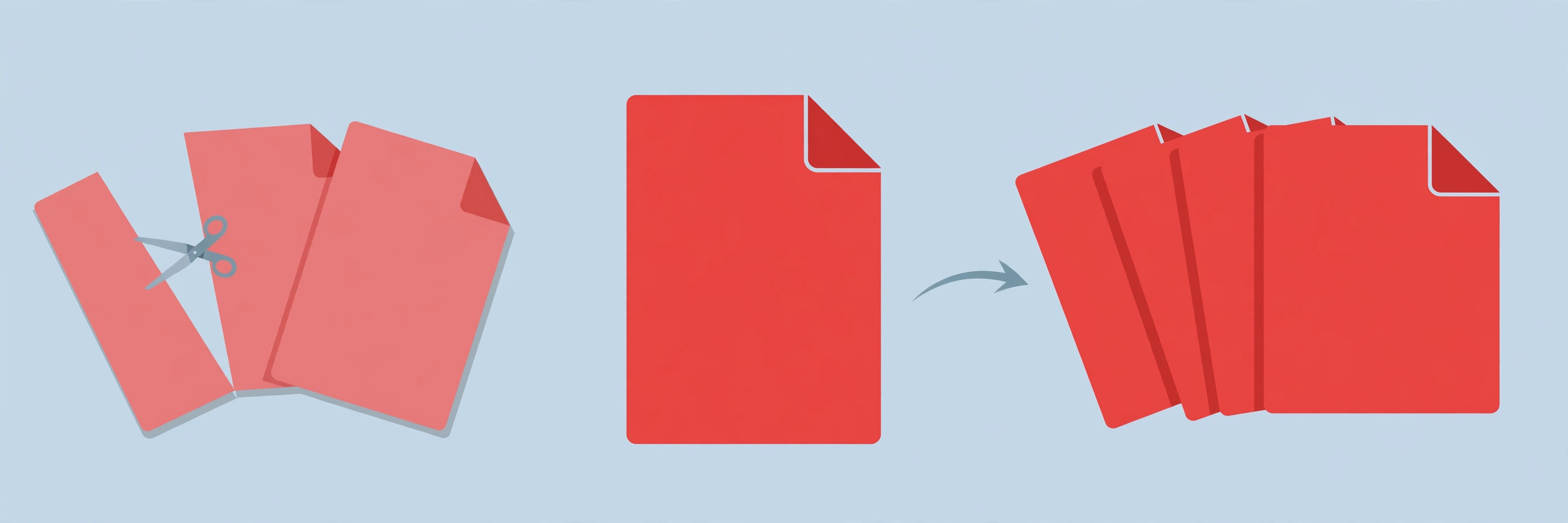
- Split divides one PDF into several new PDFs — for example, a 20-page file becomes four 5-page files.
- Extract pulls specific pages out into a new file while leaving the original untouched — for example, pages 7-9 become their own document.
- Delete pages removes pages from a PDF, producing one shorter file.
Most free online tools offer all three. If you only need one chapter out of a long document, extracting is faster than splitting. If you are reorganising an entire file, splitting gives you the most flexibility.
6 tips for clean splits and merges
- Name your files as you go. “contract-signature-page.pdf” beats “split-3.pdf” when you are searching for it next month.
- Check the page order before merging. Preview the thumbnails and drag files into the right sequence — a merged PDF with chapters out of order looks sloppy.
- Watch the file size. Merging several image-heavy PDFs can produce a huge file. If it gets too big to email, run it through a PDF compressor afterwards.
- Keep a copy of the original. Splitting and merging create new files, but keeping the untouched original is cheap insurance.
- Mind password-protected PDFs. You will need the password to split or merge a locked file — legitimate tools cannot bypass it, and you should be suspicious of any that claim to.
- Convert when it helps. Need a single page as an image for a slide or a social post? Convert that page from PDF to JPG instead of sending the whole document.
Is it safe to split a PDF online?
It is natural to hesitate before uploading a document to a website. Here is how to judge whether an online PDF tool is safe to use:
- No account required. Reputable free tools process your file without forcing you to sign up or hand over an email address.
- HTTPS encryption. Your upload travels over an encrypted connection — check for the padlock in your browser’s address bar.
- Automatic deletion. Good tools delete your files from their servers shortly after processing. Avoid any service that keeps your documents indefinitely or is vague about it.
- No watermark surprises. A trustworthy free tool gives you clean output. If a site watermarks your files until you pay, that is a sales funnel, not a free tool.
For genuinely sensitive documents — legal contracts, medical records, financial statements — the safest option is a tool that processes files locally in your browser, so nothing ever leaves your computer. When in doubt, that is the standard to look for.
Common problems and quick fixes
- The split pages came out in the wrong order. You probably entered the ranges out of sequence — double-check “1-5, 6-10” versus “6-10, 1-5”.
- The merged PDF is too large to email. Compress it: a PDF compressor shrinks image-heavy files dramatically with barely visible quality loss.
- Text is not selectable after splitting. This happens when the original was a scanned image rather than real text. The split itself does not cause it — the source file never had selectable text to begin with.
- The tool rejects my file. Very large files can hit upload limits. Try splitting the file into halves first, or compress it before uploading.
- “File is locked” error. The PDF has an owner password. Open it in a reader with the password, save an unlocked copy, then split or merge that copy.
Frequently asked questions
Can I split a PDF for free? Yes. Free browser-based tools split PDFs without accounts, watermarks, or page limits for normal everyday use.
Will splitting reduce the quality? No. Splitting and merging only rearrange pages — they do not recompress images or text, so quality stays identical to the original.
Can I split a PDF on my phone? Yes. Browser-based tools work in mobile browsers too — upload the file, choose your page ranges, and download the result.
What is the best way to split a large PDF? Split it into ranges that match your needs (by chapter, by invoice, by section), name each part clearly, and keep the original as a backup.
Do I need to install anything to merge PDFs? No. Modern browser-based tools handle the entire merge online — upload, arrange, merge, and download, all without installing software or creating an account.
Can I rearrange pages while merging? Yes. Upload the files, drag them into the order you want, and the merged PDF follows that exact sequence. Many people split a document first and then merge the pieces in a new order to reorganise it.
Take control of your PDFs
Splitting and merging are the two moves that turn any PDF from a fixed lump into raw material you can reshape. The next time a document is almost right, do not forward the whole thing and hope for the best — split out exactly what you need, or merge scattered files into one clean document. It takes a minute, it is free, and once you have done it twice, you will wonder why you ever emailed a 40-page PDF just to share 3 pages. Bookmark the free Split PDF and Merge PDF tools so they are there the next time a PDF needs reshaping.
When to Split: The Use Cases
Extracting chapters: pull the pages you need from a large document instead of sharing the whole thing.
Separating scanned batches: one scan, many documents — split into the individual files they should have been.
Sharing excerpts: send pages 12-15, not the 200-page manual. Respect the recipient’s time and attention.
Fixing page order problems: split out the misplaced section, then merge everything back in the right order.
Reducing upload sizes: forms and portals with file-size limits get only the pages they need.
When to Merge: The Use Cases
Assembling applications: cover letter plus resume plus certificates — one file, one upload, one professional impression.
Combining receipts and invoices: the month’s paperwork becomes a single archive file.
Rebuilding after edits: split, fix, and merge back — the round trip that repairs documents.
Creating handouts: chapters from several sources become one reading pack.
The Split Workflow, Step by Step
Open the split tool and upload the PDF. Choose the split mode: page ranges (for example, pages 1-5 and 6-10), individual pages, or one file per page. Preview the selection if the tool offers it — page numbers are easy to mistype. Name the outputs clearly (document-part1.pdf beats document-split.pdf). Download, verify each file opens and contains the right pages, then archive the original until you are sure the split is correct.
The Merge Workflow, Step by Step
Gather the source files first — renaming them in merge order (01-cover.pdf, 02-resume.pdf) prevents ordering mistakes. Upload in sequence, double-check the order in the tool’s list, and merge. Open the result and spot-check the joins: the last page of each section flowing into the first page of the next. Verify the page count equals the sum of the inputs. Then compress if the merged file is headed for email — merged PDFs accumulate weight.
Naming and Organization
Splits and merges multiply files fast. The discipline: descriptive names with dates or versions (contract-2026-09-signed.pdf), one folder per project, originals archived before splitting, merged results clearly marked as final. Future-you, searching for "the signed one" under deadline pressure, will either bless or curse present-you. Name like you will be searching.
Quality and Compatibility Notes
Splitting and merging with proper tools preserves content quality — pages are rearranged, not re-rendered. Watch for: encrypted PDFs (you need the password), forms with filled fields (flatten or verify after merging), and very large files (split into ranges rather than all-at-once). When a file misbehaves, the cause is usually in the source PDF, not the split/merge operation — test with a simple file to isolate.
Common Mistakes
- Wrong page ranges: off-by-one errors are endemic — verify the output, every time.
- Merging in the wrong order: the tool merges in list order; the list order is your responsibility.
- Deleting originals too soon: keep sources until the result is verified and delivered.
- Ignoring file size: merged files headed for email may need compression afterward.
- Cryptic output names: "split-output-1.pdf" means nothing in a month. Rename now.
Advanced: Splitting Strategy for Big Jobs
For large documents, plan the split before touching the tool: list the desired output files and their page ranges on paper first, then execute in one pass. Batch the downloads, verify against the plan, and archive the mapping (a one-line text file: "part1 = pages 1-40, introduction"). An hour of planning saves the afternoon of re-splitting that unplanned jobs always seem to require.
Frequently Asked Questions
Does splitting reduce quality? No — pages are extracted as-is, not re-rendered. Quality is preserved.
Can I merge PDFs with different page sizes? Yes, though the result keeps each page’s original size — check the output if uniformity matters.
What about password-protected PDFs? You need the password; the tools cannot bypass encryption, nor should they.
Is there a page limit? Very large files may process slowly in a browser — split huge jobs into ranges.
"Split with a plan, merge in order, verify the joins — document surgery without the scars."
Your Next Document
The next PDF that needs surgery is your practice run: plan the split or merge on paper, execute with the tools above, verify the result, and file the outputs with real names. Fifteen minutes, and a chore that used to mean "find someone with the software" becomes something you do between emails.