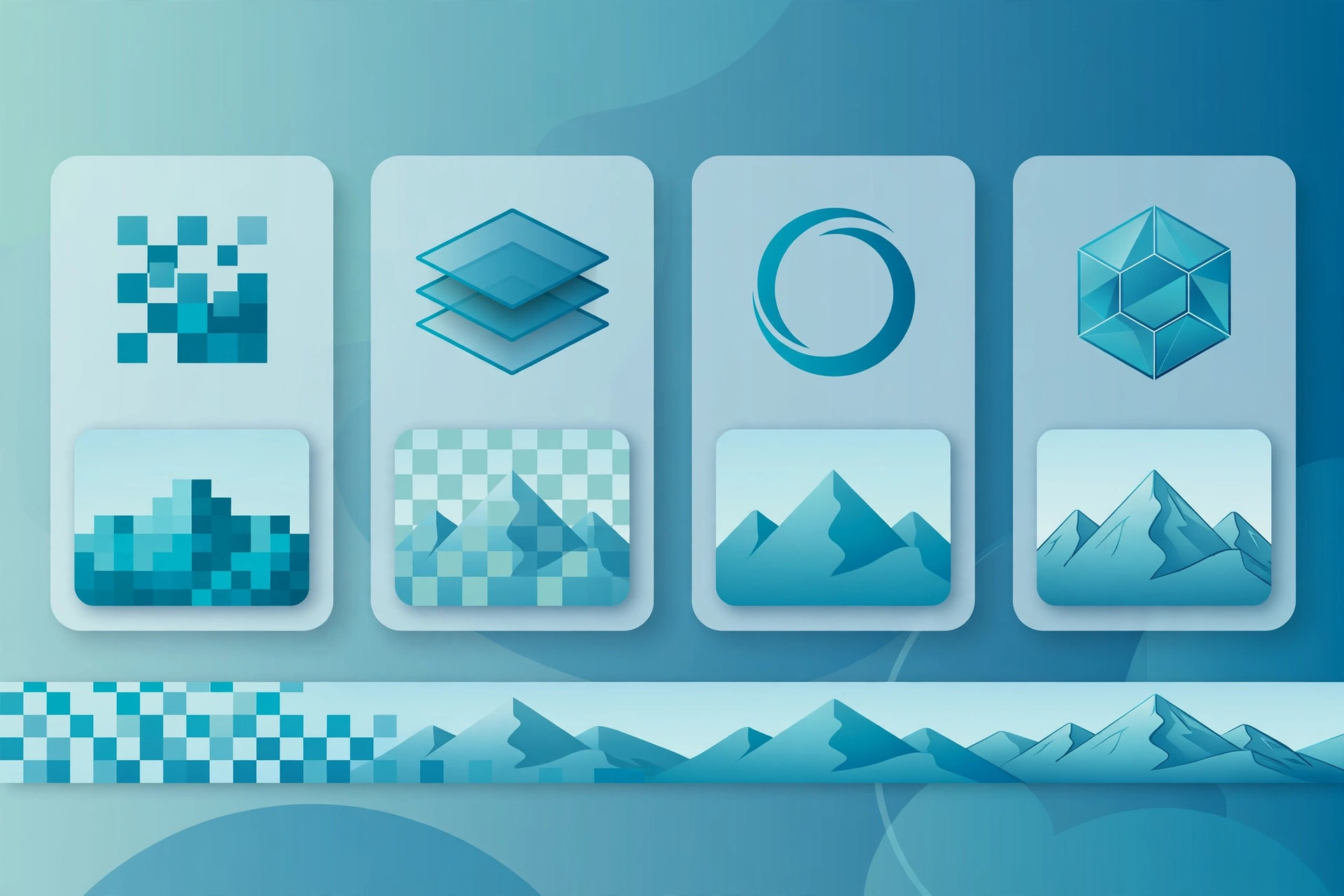
Confused by image formats? Compare JPG, PNG, WebP and AVIF on quality, file size and browser support, and learn which format to use for every job.
Every time you save, upload, or share an image, you face a quiet but important choice: JPG, PNG, WebP, or AVIF? Pick the wrong format and your website loads slowly, your photos look blurry, or your logo loses its transparent background. Pick the right one and everything just works — fast pages, sharp visuals, happy visitors.
Shrink any image for the web: the free image compressor handles every format below.
In this guide, we break down the four most common image formats in plain language: how each one works, where it shines, where it falls short, and exactly which to choose for every situation in 2026.
Why Your Image Format Choice Matters
Images are usually the heaviest part of any web page. A single unoptimized photo can be several megabytes — enough to make a mobile visitor wait, bounce, and never come back. Google also uses page speed as a ranking factor, so heavy images can quietly hurt your search rankings too.
The format you choose controls the trade-off between file size and image quality. Understanding that trade-off is the whole game:
- Lossy formats (JPG, WebP, AVIF) throw away some image data to shrink the file. Done well, the difference is invisible.
- Lossless formats (PNG, and optionally WebP/AVIF) keep every pixel perfect, but the files are bigger.
- Only some formats support transparency — essential for logos and icons.
JPG: The Universal Workhorse
JPG (or JPEG) has been around since 1992 and remains the most widely supported image format on the planet. Every browser, phone, camera, and social network understands it. It uses lossy compression that is excellent for photographs and complex images with lots of colors and gradients.
Best for: photographs, realistic images, anything where tiny quality loss is invisible.
Watch out for: JPG does not support transparency, and re-saving a JPG over and over degrades quality (called generation loss). It is also a poor choice for text, logos, or sharp line art, where its compression creates fuzzy artifacts around edges.
PNG: The Quality Keeper
PNG uses lossless compression, which means the image you save is pixel-for-pixel identical to the original. It also supports full transparency, making it the classic choice for logos, icons, screenshots, and graphics with text.
Best for: logos, icons, screenshots, images with transparency, graphics with sharp text.
Watch out for: file sizes. A PNG photo can be 3-5 times heavier than the same photo as a JPG. Never use PNG for large photographs on a website unless you have a specific reason.
WebP: The Modern All-Rounder
Developed by Google, WebP is the smart middle ground: it offers both lossy and lossless compression, supports transparency and animation, and typically produces files substantially smaller than JPG at the same visual quality. Browser support is now effectively universal — every modern browser handles WebP without issues.
Best for: almost everything on the modern web — photos, graphics, thumbnails. If you only learn one modern format, make it WebP.
Watch out for: very old software (think decade-old image editors) may not open WebP files. For the web itself, this is rarely a problem anymore.
AVIF: The Next Generation
AVIF is the newest of the four, based on the AV1 video codec. It compresses even better than WebP — often substantially smaller than JPG with excellent quality — and supports transparency, HDR, and animation. All major browsers added AVIF support in the last few years.
Best for: maximum compression when every kilobyte counts, such as hero images on high-traffic sites.
Watch out for: encoding an AVIF can be slower, and support in desktop design tools is still catching up. It is the future, but WebP remains the safer default today.
Quick Comparison
- JPG — smallest universal choice for photos; no transparency; lossy only.
- PNG — perfect quality + transparency; large files; best for logos and graphics.
- WebP — substantially smaller than JPG; transparency + animation; great default for the web.
- AVIF — smaller than JPG at the same quality; best compression; newest, still maturing.
Which Format Should You Actually Use?
Here is a simple cheat sheet:
- Photographs on a website: WebP (or AVIF if you want the smallest files). Fall back to JPG only for maximum compatibility.
- Logos and icons: PNG if you need universal support, WebP for the modern web. Consider SVG for logos — it scales infinitely.
- Images with transparency: PNG or WebP (never JPG).
- Social media uploads: JPG is still the safest — platforms often re-compress anyway.
- Archiving precious photos: PNG or TIFF — never store your only copy as a lossy file.
How to Convert Between Formats in Seconds
Have a PNG logo that needs to be a lightweight WebP? Or a JPG photo you want in the modern AVIF format? You do not need to install anything — free browser-based converters handle it instantly. Try the PNG to WebP converter or the JPG to WebP converter, or browse the full image tools collection for resizing, compression, and more.
Final Thoughts
There is no single best image format — only the best format for the job. For most web use in 2026, WebP is the sweet spot: dramatically smaller than JPG, with transparency and near-universal support. Reach for AVIF when you need the absolute smallest files, PNG when quality and transparency matter most, and JPG when compatibility is king. Choose wisely, and your pages will load faster, rank better, and look sharper.
The One-Paragraph Version
Photographs: use JPG (universal) or WebP (smaller, modern). Graphics, logos, and screenshots with text: use PNG (lossless) or WebP. Cutting-edge efficiency where supported: AVIF. Animation: video formats beat GIF for everything except the simplest loops. Compress every image once before upload, at the size it will actually display. That paragraph covers the large majority of real decisions — the rest of this guide is the reasoning behind it.
Lossy vs. Lossless: The Core Tradeoff
Lossy formats (JPG, WebP lossy, AVIF lossy) discard image data permanently to shrink files — tuned well, the discarded data is stuff human eyes barely notice. Lossless formats (PNG, WebP lossless) preserve every pixel exactly, at the cost of larger files. The practical rule: use lossy for photographs (nobody can see the discarded data at sensible settings) and lossless for graphics with sharp edges and text (where lossy artifacts are visible and ugly). Choosing wrong in either direction wastes bytes or quality.
JPG: The Universal Workhorse
Three decades old and still everywhere: JPG is lossy-only, has no transparency, but opens on literally everything. Its strength is compatibility — email clients, old software, every CMS on earth. Its weakness is efficiency — modern formats beat it substantially on size. Keep JPG as the safe default when compatibility matters more than bytes: client deliverables, email attachments, uploads to systems you do not control.
PNG: The Precision Format
PNG is lossless with full transparency support — perfect for logos, icons, screenshots, and graphics with text, where every edge must stay crisp. Terrible for photographs: a PNG photo can be several times heavier than the same photo as a JPG, with zero visible benefit. The classic beginner mistake is PNG-everything; the fix is format-by-content, not format-by-habit.
WebP: The Modern Default
Developed by Google, WebP handles both lossy and lossless compression, supports transparency and animation, and is now supported across all modern browsers. For web photos it typically delivers the same visual quality as JPG at notably smaller sizes. The honest caveats: very old software may not open it, and some social platforms convert uploads anyway. For your own website, WebP is the smart default in 2026 — with JPG as the fallback where compatibility is uncertain.
AVIF: The Efficiency Frontier
AVIF compresses even better than WebP — often dramatically so for photographs — but browser and tooling support, while growing, is still catching up. The pragmatic stance: test AVIF for image-heavy pages where every byte counts, keep WebP as the workhorse, and revisit yearly. Format leadership changes every few years; the workflow (right size, modern format, one careful compression pass) survives every transition.
GIF: The Legacy Animator
GIF is limited to 256 colors and compresses poorly — kept alive by culture, not technology. For simple animations, modern video formats deliver better quality at a fraction of the size. Keep GIF only where its universal animation support matters (some messaging apps, email clients) and prefer video everywhere else. Nostalgia is not a compression strategy.
Transparency: Which Formats Qualify
Need transparency? Your options are PNG (universal, larger), WebP (modern, smaller), and AVIF (newest, smallest). JPG never supports transparency — a JPG "with a transparent background" is a contradiction; the background becomes a solid color, usually white or black. Check transparency needs before choosing: it eliminates JPG immediately and frames the PNG-vs-WebP decision.
The Decision Flowchart (In Words)
Is it a photograph? Yes: WebP for your own site, JPG for maximum compatibility. Is it a logo, icon, or screenshot with text? PNG or WebP lossless. Does it need transparency? PNG/WebP/AVIF — never JPG. Is it animated? Video format preferred; GIF only for compatibility niches. Then: resize to display dimensions, compress once, verify visually. Five questions, one correct format, every time.
Compression Settings Without the Mysticism
Quality sliders are not school grades. For lossy photos, start in the middle of the range, view the result at full size, and adjust only if you see artifacts — blockiness in smooth gradients, halos around text, banding in skies. Different images tolerate different settings: busy detailed photos compress more aggressively than smooth gradients. Two minutes of looking beats any fixed number, because the right setting depends on the image, not the format.
Responsive Images: Size for the Screen
The biggest waste is not format but dimensions: serving a 4000-pixel image into an 800-pixel slot. Export at the actual display size (or 2x for retina-critical imagery like logos), and use responsive markup to serve appropriate sizes to different devices. Format choice multiplies these savings; dimension discipline creates them. Do dimensions first — it is the larger lever.
Real-World Scenarios
The blogger: photos to WebP, compressed, at content width; screenshots to PNG. Page weight drops, quality holds.
The e-commerce store: product photos in WebP with JPG fallback, consistent dimensions, zoom versions on demand. Speed becomes a feature.
The designer handing off: logos as PNG (or SVG where vector fits), mockups as compressed JPG/WebP. Developers stop asking for "a smaller version."
The email marketer: JPG for photos (universal inbox support), PNG for logos. Test in the actual clients your audience uses.
Common Mistakes
- PNG photographs: the single most common waste — convert to JPG/WebP and watch megabytes vanish.
- Uploading originals: camera and phone originals are far larger than any display needs.
- Compressing twice: each lossy pass degrades; compress once, from the best source.
- Ignoring the eyeball test: no setting replaces looking at the output.
- Forgetting thumbnails: generate real small files instead of serving full images scaled by CSS.
Converting Between Formats
Conversion is straightforward with the right tool: JPG to WebP, PNG to JPG, and the full converter set cover every direction. The rules: convert from the best-quality source available, never convert lossy-to-lossy repeatedly (each generation loses quality), and verify the result visually. Format migration for an existing site is a batch job — prioritize the heaviest, highest-traffic images first.
The 2026 Recommendation Summary
For new work: WebP as the default for web images, PNG for graphics needing universal compatibility, JPG where compatibility trumps efficiency, AVIF where you can test and verify. Revisit annually — the efficient frontier moves. And whatever the format: right size, one compression pass, verified by eye. That workflow outlives every format war.
Frequently Asked Questions
Which format is smallest? Usually AVIF, then WebP, then JPG for photos; PNG for graphics. But dimensions and settings matter more than format alone.
Should I convert my whole site to WebP? Prioritize: heaviest images on highest-traffic pages first. A full migration is nice; the top 20 images capture most of the value.
Does format affect SEO? Indirectly — smaller images mean faster pages, and speed is a confirmed (if minor) ranking factor. Alt text and relevance matter far more.
What about HEIC from iPhones? Convert HEIC to JPG/WebP before web use — browser support for HEIC remains poor.
"The best format is the one matched to the content, sized to the display, and compressed once — everything else is commentary."
Your Next Step
Open your homepage, find its heaviest image, and run it through the decision flowchart right now: right format, right size, one compression pass. Time the whole exercise — then multiply by every image on your site. That number is the business case for this entire guide, and the first saving takes less time than reading this sentence took.